Mail MCP server for Mac: AI drafts, you send
Last updated: 2026-11-14
An AI agent cannot read your mailbox or write in your mail app by itself. Emerald Tools, a menu bar app for macOS 14.0 or later, adds a Mail service to its built-in MCP server: once you turn it on and add your IMAP accounts, a connected agent can search and read your mail across accounts, and prepare a new message or a reply in a compose window on your Mac. Sending is never the agent's: nothing leaves until you review the message and click Send yourself, and reading does not mark anything as read.
An agent on its own
- A chat or coding agent cannot see your mailboxes, so it only knows the messages you paste in.
- Asking it to "reply to that email" ends with text you copy into your mail app, address and all.
- Giving a tool your password and letting it send on your behalf hands over the last step as well.
The Mail service in Emerald Tools
- Lets a connected agent search and read across the IMAP accounts you add, without marking anything as read.
- Opens what the agent prepares — a new message, or a reply threaded under the original — in a compose window on your Mac.
- Leaves sending to you. Agents have no tool that sends, deletes or moves mail, and they cannot attach files.
- Keeps each password in the macOS keychain on your Mac, and never hands server names, user names or passwords to the agent.
- Is off until you turn it on, and asks you to confirm first, because mail can hold personal or other sensitive information.
How to let an AI agent work with your email
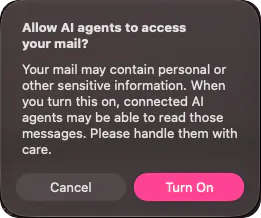
- Turn on the Mail serviceSet up the MCP server and register it with your MCP client first, as described in the MCP server guide. Then open the dashboard, pick MCP Server in the sidebar, and switch on Mail under Tool Groups. Emerald Tools asks Allow AI agents to access your mail? and explains that connected agents may be able to read messages containing personal or other sensitive information; choose Turn On to continue.
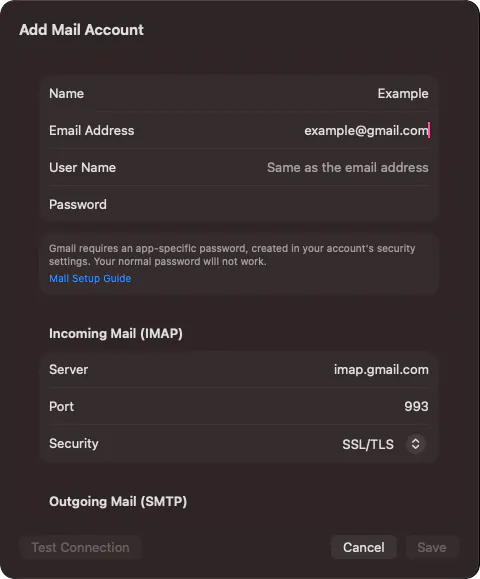
- Prepare a password for the accountiCloud Mail, Gmail, Yahoo Mail and Fastmail do not accept your normal account password from other mail apps; you create an app-specific password in your account's security settings instead. For Gmail, 2-Step Verification has to be on before Google offers App passwords. For other providers, use the password your provider gives for IMAP and SMTP.
- Add the mail accountClick the chevron next to Mail to open its page, then click Add Account... and fill in a name to show as the sender, the email address and the password. For an iCloud Mail, Gmail, Yahoo Mail or Fastmail address, the incoming (IMAP) and outgoing (SMTP) server, port and security are filled in for you, with a note that an app-specific password is needed. For any other provider, enter the server settings it publishes. Test Connection signs in to the incoming server; Save stores the account, and its mailboxes are fetched.
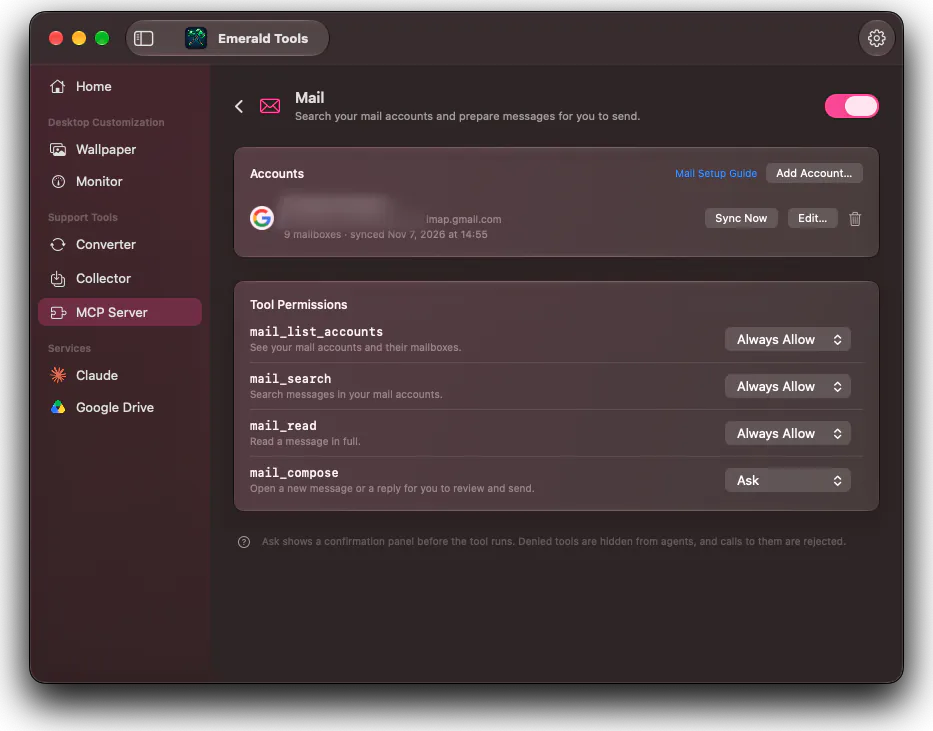
- Check what each mail tool may doBelow the accounts, Tool Permissions lists the four mail tools. The three that read — listing accounts, searching and reading a message — start as Always Allow. mail_compose, which opens a compose window, starts as Ask. Set any of them to Deny to hide it from agents.
- Ask the agentAsk in plain words: find the latest message from a colleague, summarise a thread, draft a reply that accepts Wednesday. The agent searches and reads through the read tools, then calls mail_compose with what it proposes. Emerald Tools opens a compose window on your Mac with the recipients, subject and text filled in; for a reply, the original is quoted below and the reply is threaded under it.
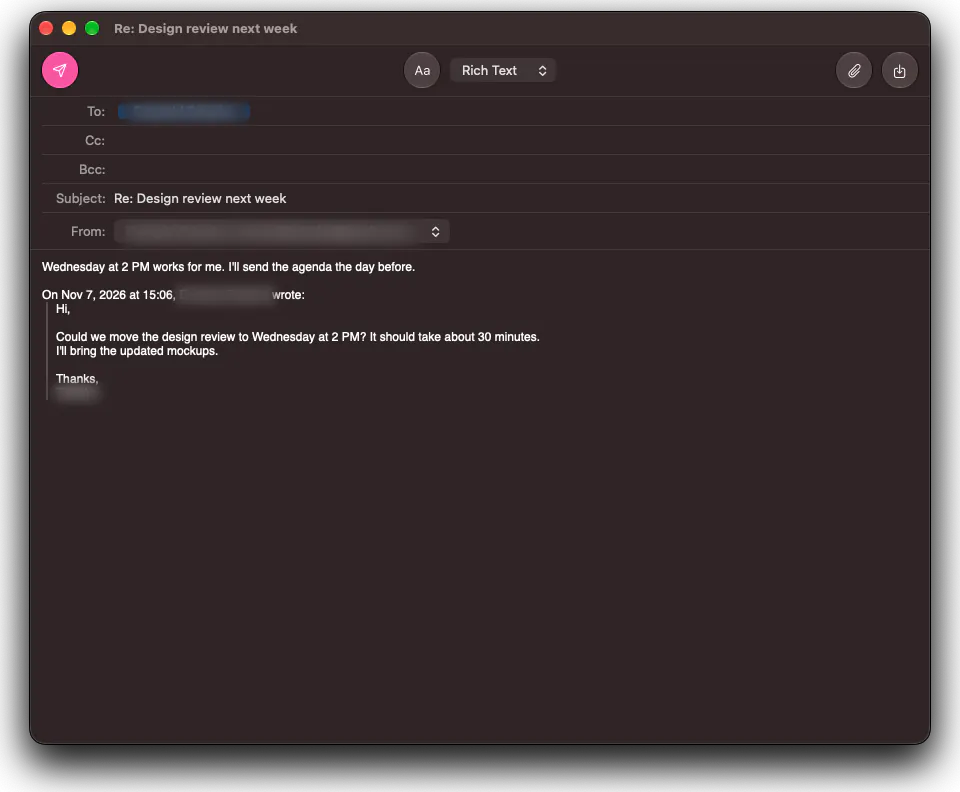
- Review and send it yourselfEdit anything in the compose window, add attachments with the paperclip button or by dragging files in, and click Send when you are ready. A small panel at the top right counts down before the message actually goes, with an Undo Send button. If you close the window instead, Emerald Tools asks whether to save the message as a draft on your mail server or discard it.

What an agent can do, and what it cannot
Turning on the MCP server, registering the connector and the general permission settings are covered in the MCP server guide. This page is about the Mail service.
| Tool | What it does | Default |
|---|---|---|
mail_list_accounts |
Lists the accounts you added — address, sender name, domain — and each account’s mailboxes. No mail server is contacted | Always Allow |
mail_search |
Searches the mail on the servers, across all accounts or the ones named, newest first: by sender, recipient, subject, body, any text, date range or unread only. Each result carries up to 400 characters of the body | Always Allow |
mail_read |
Reads one message in full as text, with the names, types and sizes of its attachments | Always Allow |
mail_compose |
Opens a new message or a reply in a compose window for you to review and send | Ask |
What is left out matters as much:
- No sending. A message goes only when you click Send in the compose window.
- No deleting, moving or flagging. The tools cannot change what is on your server, and searching or reading does not mark messages as read.
- No attachments from the agent. Only you can attach files, in the compose window.
- No credentials. The account list gives agents addresses and mailbox names; server names, user names and passwords are never returned.
Mail accounts that work
Any account that offers IMAP for incoming mail and SMTP for outgoing mail. Four providers are filled in when you type their address:
| Provider | Addresses | Password |
|---|---|---|
| iCloud Mail | icloud.com, me.com, mac.com |
App-specific password |
| Gmail | gmail.com, googlemail.com |
App-specific password (needs 2-Step Verification) |
| Yahoo Mail | yahoo.com |
App-specific password |
| Fastmail | fastmail.com, fastmail.fm |
App-specific password |
For other providers, enter the incoming and outgoing server, port and security from the provider’s own settings page. Connections are always encrypted, either SSL/TLS from the start or STARTTLS; there is no unencrypted option. Outlook.com and Hotmail accounts cannot be added at present.
The compose window
The compose window is where an agent’s work ends and yours begins.
- From. The agent names the sending account by its full address or just its domain, such as
@example.com. You can switch it in the From menu. - Replies. For a reply, the recipients, a
Re:subject and the threading headers are filled in, and the original is quoted below in its own format; the agent’s text goes above the quote. Sending marks the original as answered on the server. - Format. Rich Text with a format bar, or Plain Text; ⇧⌘T switches between them.
- Attachments. The paperclip button, or drag files into the window.
- Drafts. While you write, the message is saved as a draft on your mail server from time to time. Save Draft keeps it there; closing the window asks whether to save or discard it.
- Undo Send. After you click Send, a panel at the top right counts down before the message goes, 10 seconds by default. Undo Send brings the window back. If you quit Emerald Tools during the countdown, the message is kept as an unsent draft on your server.
A copy of each sent message is kept in the Sent mailbox on your server.
Settings for Mail
In the Settings window, on the MCP Server tab:
- Show website icons shows each account’s website icon in the account list, fetched from the website of the address’s domain. When off, no website is contacted and a standard icon is shown.
- Undo send delay sets the countdown after Send: Off, 10, 20 or 30 seconds.
- Mailbox sync time is when, once a day, each account’s list of mailboxes is refreshed, so agents can choose a mailbox to search. Sync Now on an account in the dashboard refreshes it at any time.
Specifications and limits
- Tools: four — list accounts, search, read, compose. Reading tools start as Always Allow, compose as Ask.
- Accounts: IMAP and SMTP, several accounts at once; presets for iCloud Mail, Gmail, Yahoo Mail and Fastmail.
- Security: SSL/TLS or STARTTLS only. Passwords in the macOS keychain on this Mac, not synced to other devices.
- Search results: 20 by default, up to 100, newest first; up to 400 characters of each body.
- Reading: the full body as text, with HTML-only messages converted; bodies over 2 MiB are cut off and marked as such. Attachments are described, not returned.
- Sending: only from the compose window, by you, with an undo countdown of up to 30 seconds.
- Not available to agents: sending, deleting, moving, flagging, marking as read, attaching files.
- System requirement: macOS 14.0 (Sonoma) or later, Emerald Tools 1.3 or later.
Emerald Tools is an independent app. It is not affiliated with, endorsed by or sponsored by Anthropic, Apple, Google, Yahoo, Fastmail or Microsoft. The Mail service is a way for an AI client you already use to reach your mail under rules you set; it does not provide an AI model of its own, and your mail provider’s terms continue to apply to your account.
Frequently asked questions
Gmail says it cannot sign in. What do I check?
Use an app password, not your Google account password. If Emerald Tools shows Sign-in failed. Check the user name and password. with Invalid credentials from the server, the password is not one Gmail accepts for IMAP. If the App passwords page in your Google account says the setting is not available, first check that 2-Step Verification is on. If it is on and the page still says so, the account is one where Google does not offer App passwords: 2-Step Verification using only security keys, a work or school account, or Advanced Protection. Changing your Google password also revokes the app passwords you created.
Can I use my normal account password?
Not with iCloud Mail, Gmail, Yahoo Mail or Fastmail: they turn away the normal password from other mail apps, and the account editor says so when you type one of their addresses. Other providers that allow IMAP and SMTP with the account password work with it.
Can I add an Outlook.com or Hotmail account?
Not at present. Outlook.com and Hotmail accounts require a Microsoft sign-in for IMAP and SMTP, which this version of Emerald Tools does not offer.
Can the agent send an email on its own?
No. There is no tool that sends. mail_compose only opens a compose window, and the agent is told nothing more than that the window opened and which address it is from — not what you changed, and not whether you sent, saved or discarded it. Only you can send, from that window.
Do I get the Allow this action? panel before the compose window?
No. When mail_compose is set to Ask, the compose window itself is where you decide: nothing is sent unless you click Send there. Set it to Deny if you do not want agents to open compose windows at all.
Will searching or reading mark my messages as read?
No. The read tools leave the read status as it was on the server. Replying through the compose window marks the original as answered once you send it, as other mail apps do.
Can the agent delete, move or attach files?
No. The four mail tools list accounts, search, read and open a compose window. Nothing deletes, moves, flags or marks messages, and attachments can only be added by you in the compose window. Reading a message tells the agent the names, types and sizes of its attachments, not their contents.
Does it search all my accounts at once?
Yes, unless the agent narrows the search to particular addresses or domains. Results come back newest first, and if one account cannot be reached, its error is reported while the others' results still arrive. Matching is done by each mail server, so how well non-English text matches depends on the server.
Where is my mail stored?
On your mail servers, as before. Emerald Tools does not keep message bodies, subjects or headers on your Mac; it fetches them when a tool asks. The password of each account is stored in the macOS keychain on this Mac only. A message you are writing is saved as a draft on your own mail server, and a message you send goes out through your own outgoing server. The privacy policy describes this in full.
What happens if I turn Mail off or remove an account?
Turning Mail off removes the mail tools from what the agent sees, without reconnecting the client. Removing an account deletes it and its saved password from Emerald Tools; the mail on the server is not affected.
What do I need?
A Mac running macOS 14.0 (Sonoma) or later, Emerald Tools version 1.3 or later, an MCP client on the same Mac, and a mail account that supports IMAP and SMTP. Emerald Tools is a subscription app with a 14-day free trial; the App Store listing shows the current terms for your region.
Get Emerald Tools for macOS
Mail is one of the services of the Emerald Tools MCP server, alongside Reminders and system metrics. The app also brings multi-display live wallpapers, system monitor widgets, screenshots that upload to Google Drive, a web media collector, and a WebP to MP4 converter. It lives in the menu bar and stays out of your Dock.