Emerald Tools guides
Emerald Tools is a menu bar app for macOS 14.0 (Sonoma) or later, and every tool described in these guides lives inside that one app. There is no Dock icon and no window you have to leave open: you click the icon in the menu bar, open the dashboard from there, and each tool has its own page in the sidebar. Launching at login is a setting you turn on if you want the icon waiting for you the next time the Mac starts.
The guides
Live wallpapers on macOS: video, multi-monitor, and scheduled
How to set a video or live wallpaper on a Mac, give each display its own, switch them on a schedule, and lay a translucent overlay over the macOS interface.
Mac system monitor widgets: CPU, GPU, memory and network on your desktop
How to put live CPU, GPU, memory, swap, disk, storage I/O, network, battery and thermal readouts in the corners of your Mac desktop, keep a year of history, and get a notification before a threshold is crossed.
Claude usage on the Mac desktop: your 5-hour window and weekly limit as a widget
How to keep your own claude.ai usage — the 5-hour window, the weekly limit and any per-model limits — in the corner of your Mac desktop, read from your signed-in session once a minute and displayed locally.
Mac screenshots that upload to Google Drive and copy a share link
How to capture a screenshot on a Mac, have it upload to a folder in your own Google Drive, and get a share link on the clipboard — with the link access, the upload folder and the keyboard shortcuts all set once.
Collect every image on a web page and send them straight to Photos on your Mac
How to scan a web page for the images it actually contains — including the ones that only load as you scroll — filter them by size, and import the ones you pick into a Photos album, using a Safari extension and a menu bar app for macOS.
Convert animated WebP to MP4 on your Mac, a folder at a time
How to turn animated WebP files into MP4 video on macOS — a whole folder in one run, with the frame timing the file itself declares, the originals left untouched, consecutive clips joined automatically, and optional frame interpolation for low-frame-rate sources.
Where each tool lives in the app
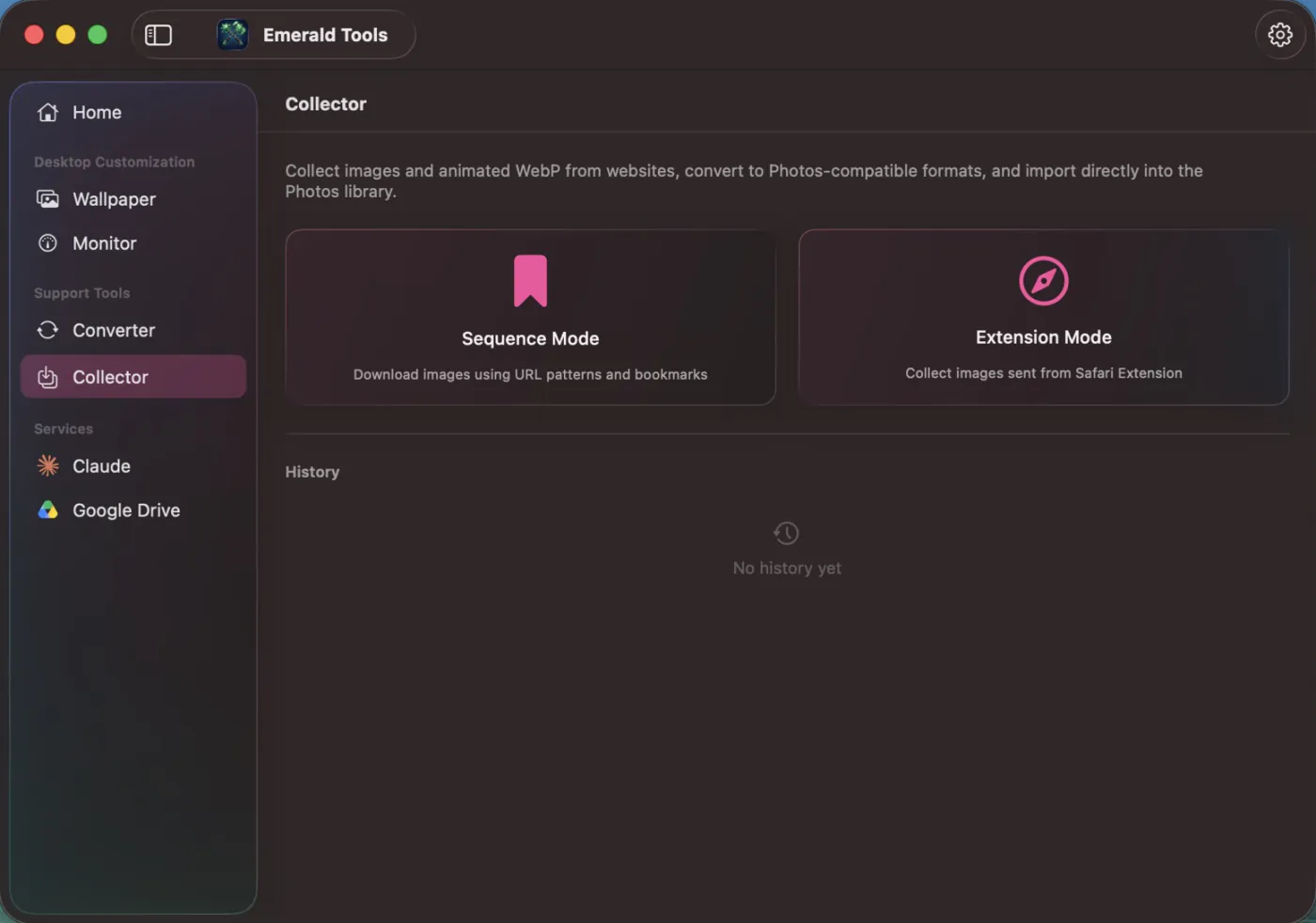
The dashboard sidebar groups the tools under three headings. Desktop Customization holds the wallpapers and the system monitor widgets. Support Tools holds the converter and the image collector. Services holds the connections you sign in to — your own claude.ai session and your own Google Drive account — which is why the Claude usage widget and the Google Drive uploads are set up there rather than in settings. Screenshots are the exception: they are taken from the menu bar popover — or with a keyboard shortcut once you enable one — and configured in the settings window, so they have no page of their own in the sidebar.