Convert animated WebP to MP4 on your Mac, a folder at a time
Last updated: 2026-08-24
An animated WebP is an image file as far as macOS is concerned, so the tools that convert images hand back a single still frame and the tools that play video will not open it at all. Emerald Tools is a menu bar app for macOS 14.0 or later whose converter takes a whole folder of animated WebP and writes an MP4 for each one, using the frame timings the file itself declares. It runs entirely on your Mac, and it never touches the originals: the converted files are held aside until you say where they should go.
What macOS does with an animated WebP
- It reads it. WebP decoding is part of the system's own image stack, so the file opens and you can see the picture.
- What it will not give you is a video. Image conversion produces a still image — one frame out of however many the animation holds — because that is what an image converter is for.
- A video player has nothing to open, because WebP is not a movie format. The same goes for anything else that expects a movie file, a moving desktop wallpaper included.
- And it is one file at a time. A folder of a hundred is a hundred rounds of the same thing.
The converter in Emerald Tools
- Takes a folder rather than a file. Every animated WebP directly inside it is converted in one run, several at a time.
- Writes one MP4 per source, at the size of the original and with the per-frame delays the WebP declares, so the result runs at the speed the animation was authored at.
- Leaves your files alone. The originals are only read, and the results are held in a working area until you choose where to export them.
- Joins clips that turn out to be consecutive pieces of one animation, keeping the pieces, and can synthesise in-between frames when a source has a low frame rate.
How to convert animated WebP files to MP4 on a Mac
- Open the converterInstall Emerald Tools from the Mac App Store. It lives in the menu bar rather than the Dock, so click its icon and choose the dashboard — Command-D does the same thing — and pick Converter, which sits under Support Tools in the sidebar alongside Collector. The page opens on step one of three: Select, Convert, Export.
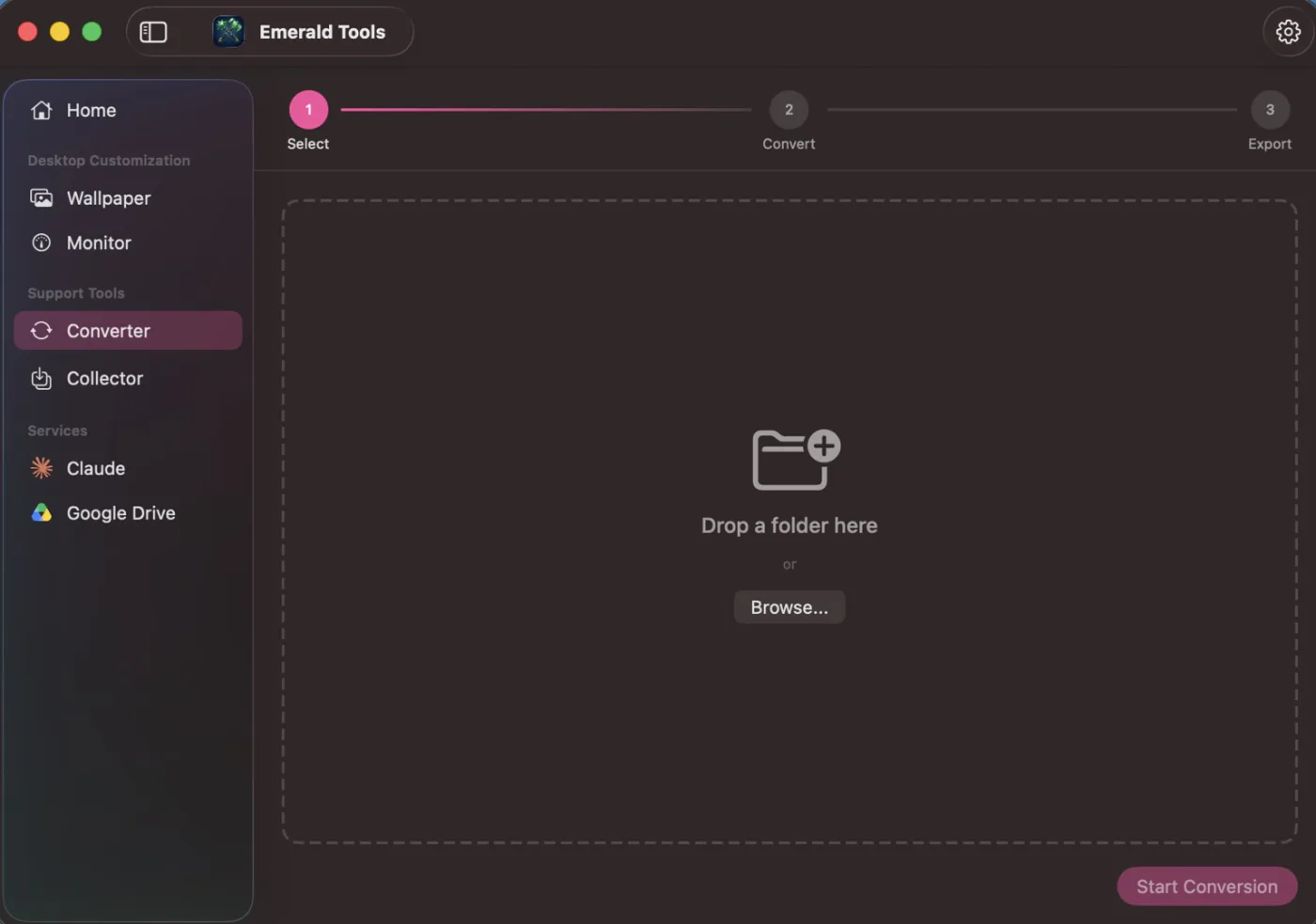
- Give it a folderDrag a folder onto the dashed area, or press Browse and pick one. It wants a folder and not a file: what it converts is the .webp files sitting directly inside the folder you hand it, and it does not go down into subfolders. Once a folder is chosen its name and full path are shown, with a cross to clear it again, and Start Conversion becomes available.
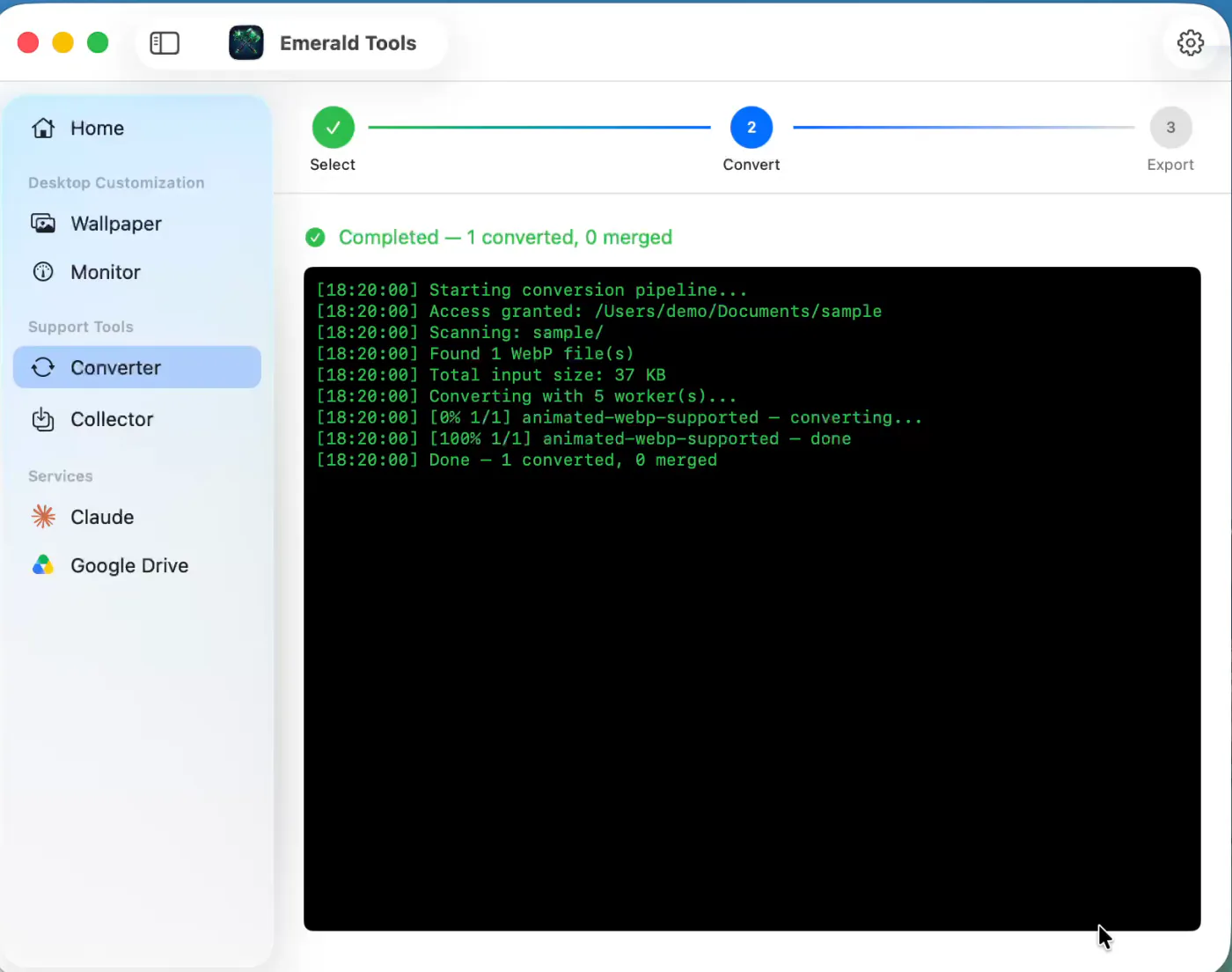
- Let it runStep two counts the WebP files it found, reports their total size, and starts converting several at a time — half of your Mac's cores by default. A log fills in as it goes: one line when each file starts, one when it finishes, and a note for any file that turned out to be a still image rather than an animation. A progress bar, a running count and a rough time remaining sit above it, and Cancel stops the run and throws away what it had produced.
- Choose where the results should goWhen it is done the page moves on to step three, which reports how many files were converted and how many were joined together. Save to input folder puts them beside the originals in a new subfolder named for the date and time, so nothing already there can be overwritten by accident; Choose another folder lets you point somewhere else entirely. Export writes the files out.
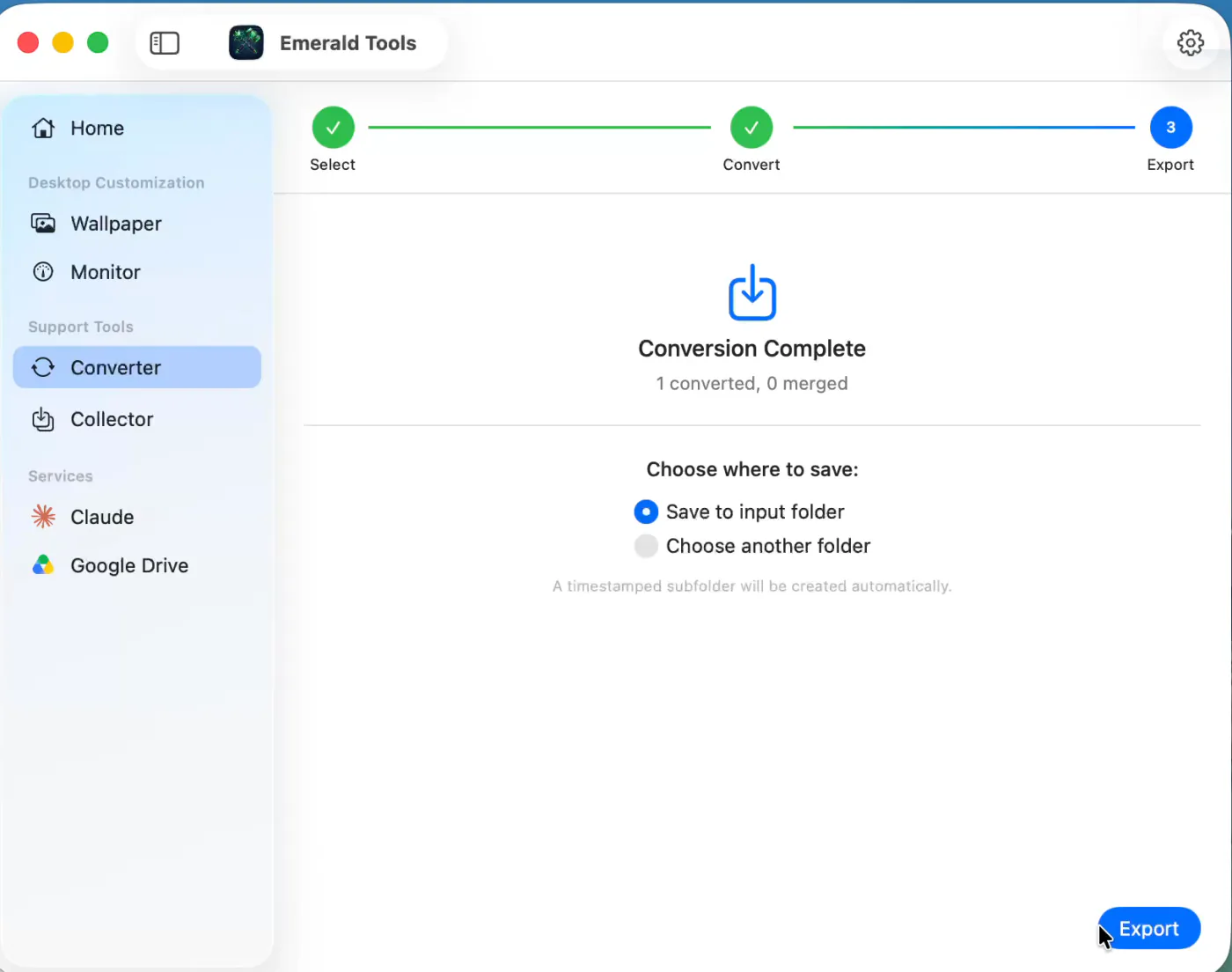
- Collect the filesThe last screen confirms how many files were written and offers to open the destination in the Finder. Start Over clears everything and returns to the first step, ready for another folder. This is also the point at which the results become real files: until you press Export they exist only in the app's working area, so export before you quit.
Why a Mac will not simply turn one into a video
WebP is an image format that happens to be able to hold more than one frame. That single fact explains everything awkward about it. Every part of macOS that deals with the file treats it as a picture — because it is one — and pictures are converted into other pictures. Ask for a JPEG or a PNG and you get a JPEG or a PNG: one frame, the animation gone.
The video half of the system never sees it at all. Movie players and editors work from a list of container and codec formats they understand, and WebP is not on it, so there is nothing to open. This is also why an animated WebP makes a disappointing wallpaper: a program that wants a movie file cannot be given an image file instead, and one that accepts images will show it the way it shows any image, which is to say still.
So the conversion has to be done deliberately, by something that reads the frames out of the image side and writes them into the video side. That is all the converter in Emerald Tools is — but doing it for a folder rather than a file, and doing it without guessing at anything the source file already knows.
What it does with each file
Every animated WebP carries its own timing: each frame declares how long it should be held. The converter reads those delays and lays the frames out on the same schedule, so a slow animation stays slow and a fast one stays fast. Only where a frame declares no delay at all does it assume anything, and then it assumes a tenth of a second.
The picture is written at the source’s own size — no scaling, no cropping — except that an odd number of pixels is rounded down by one, because the encoder cannot accept odd dimensions. The result is HEVC video in an MP4 container with no audio track. The bitrate is worked out from the material rather than fixed: the frame area multiplied by the average frame rate, multiplied by the one quality control there is.
Files that are not animations are not a failure case. A folder downloaded from a website is usually a mixture, and the still WebP files in it are simply reported in the log and passed over. If it turns out there was nothing animated in the folder at all, the app says so plainly instead of ending on an empty result you would have to interpret.
None of this touches the folder you pointed at. The MP4s are assembled in a working area of their own, and the final step is where you decide whether they should land beside the originals — in a new subfolder stamped with the date and time, so nothing existing can be overwritten — or somewhere else entirely.
Clips that belong together
Animations pulled from a page are often one sequence cut into pieces. The converter looks for that: once everything is converted, it compares the last frame of each clip against the first frame of every other, and where two frames are close enough to be continuous it links them into a chain. A chain is written out as one file named after its pieces, joined by a plus sign.
Two things keep this from running away with your files. Where the names are plain numbers, a clip is only ever considered against the next number up, so an accidental match between the first and the twelfth piece cannot happen. And the pieces are never deleted — a joined file is an addition, not a replacement, so a join you did not want costs you nothing but a file you can throw away.
How willing it is to link is a setting, not a fixed rule. The threshold is a measure of how different two frames are allowed to be, and it can be tightened until only near-identical frames qualify or loosened until fairly different ones do.
Frame interpolation, and when it earns its cost
Animations meant for the web are often authored at eight or ten frames a second, which reads as a series of steps rather than movement once it is a video. Frame interpolation invents the frames in between: it estimates how the picture moved from one frame to the next and builds the intermediate stages, bisecting each gap until the result is somewhere near 32 frames a second. A source already at that rate is left alone.
It is off by default for two reasons, and the app says both of them on the settings page. The first is time — the estimation runs several times per gap, on every gap, and a long animation feels it. The second is that estimated motion is estimated: where the movement between two frames is large, or where something is hidden in one frame and revealed in the next, there is no correct in-between picture to build and what gets built can smear.
The compromise on offer is a limit on how much motion is worth attempting. Each gap is measured before anything is synthesised, and gaps whose motion exceeds the limit are left with their original frames — a moment of judder rather than a moment of smearing. The limit is expressed as a share of the shorter side of the picture and can be moved in either direction, which is really a choice about which of the two artefacts you would rather see. Clean, drawn animation with steady movement is where the technique looks its best; fast live-action footage is where it looks its worst.
The same settings serve the image collector
Emerald Tools converts animated WebP in two places. The converter described here is one; the other is the Safari extension and collector, which downloads the images on a web page and turns any animated WebP among them into MP4 on the way into Photos. Both use the same conversion settings — quality, similarity threshold, worker count, frame interpolation — from the same place in the app’s settings.
The two differ in what they do with the source file, and the difference is deliberate. The converter is a tool you point at your own folder, so it leaves that folder as it found it. The collector is working on files it downloaded itself a moment earlier into a temporary place of its own, so it replaces them. Changing a setting under Converter changes the behaviour of both; there is no second set of values to keep in step.
Specifications and limits
Everything below is the behaviour of the current release, not a plan.
- Input: files ending in .webp directly inside the chosen folder. Subfolders are not scanned. Files are processed in name order, with numbers compared as numbers.
- Animated only: a WebP with a single frame is logged as a static image and skipped. A folder with no WebP, or with no animated WebP, ends with a message saying so.
- Output: one MP4 per source, named after the source. HEVC video, no audio track.
- Size: the source’s own pixel size, rounded down to even dimensions where it is odd. No scaling or cropping.
- Timing: the per-frame delay declared in the WebP. A frame with no declared delay is held for 0.1 seconds.
- Bitrate: width × height × average frame rate × the Bitrate Multiplier, which runs from 0.1 to 1.0 in steps of 0.1 and starts at 0.5.
- Originals: read only. Nothing in the source folder is modified, moved or deleted.
- Results: held in a temporary working area until exported, then either written to a date-and-time-stamped subfolder inside the source folder or to a folder you choose.
- Joining: clips whose adjoining frames match within the Similarity Threshold are also written out as one combined file, named piece+piece.mp4. The pieces are kept. Numeric names are only compared with the next number up. The threshold runs from 0.01 to 0.5 and starts at 0.125. At least two converted clips in one run are needed for any join to happen.
- Frame interpolation: off by default. Targets roughly 32 frames a second by bisecting the gaps, up to three levels; sources at or above the target are skipped automatically.
- Motion Threshold: 4 to 30 per cent of the shorter side of the picture, starting at 12 per cent. Gaps with more motion than this keep their original frames instead of being interpolated.
- Workers: half of the reported cores by default, adjustable from one to all of them. Dynamic Workers, off by default, raises the count by about a quarter from twenty files and by half from fifty, never exceeding three quarters of the cores.
- Shared settings: the same Quality and Performance values are used by the automatic conversion the image collector performs on what it downloads.
- Permissions: none beyond access to the folder you select. No Photos library access, no screen recording, no accessibility.
- Transmission: none. Conversion is performed locally by the frameworks macOS ships with.
- System requirement: macOS 14.0 (Sonoma) or later.
Frequently asked questions
Which files in the folder does it convert?
The ones ending in .webp that sit directly inside the folder you chose, in name order, with numbers read as numbers so 2 comes before 10. Subfolders are not looked into, and files of any other kind are ignored. Among the WebP files, only the animated ones produce an MP4: a still WebP is reported in the log as a static image and skipped. If the folder holds no WebP at all, or holds WebP files of which none are animated, the app says so rather than finishing with an empty result.
What exactly comes out?
One MP4 per animated source, named after it — cat.webp becomes cat.mp4. The video is HEVC and there is no audio track, because a WebP has no sound to carry. The picture keeps the size of the original, rounded down to an even number of pixels where it is odd, which is a requirement of the encoder rather than a choice. Timing comes from the WebP itself: each frame is held for the delay the file declares for it, and a frame that declares none is held for a tenth of a second.
Does it change or delete my WebP files?
No. The folder you hand it is only ever read. The MP4s are built in a temporary working area and stay there until you export them, which is why the last step asks where to put them. The flip side is that they are not files you can find on disk until you press Export — if you quit the app first, the working area is cleared the next time it starts.
What does "1 converted, 0 merged" mean?
Converted is the number of animated WebP files that produced an MP4. Merged is the number of new files made by joining clips that looked like consecutive pieces of the same animation. A run where every file stands on its own reports zero merged, which is the normal result for a folder of unrelated animations.
Why did two of my clips turn into one file?
Because the last frame of one and the first frame of the next were close enough to look continuous. After converting, the app compares those frames as small thumbnails and links up the pairs that match, then writes the chain out as a single file whose name is the pieces joined by a plus sign — 01+02.mp4. Files named only with numbers are only ever linked to the next number up, so 01 can join 02 but never 03. The pieces are kept, so if the join was wrong you still have everything you started with.
Can I stop it joining files?
The current version has no switch that turns joining off, but it does have the threshold that decides what counts as a match: Similarity Threshold in the converter's settings, adjustable from 0.01 to 0.5 and set to 0.125 out of the box. Lower it and only near-identical frames will be linked; raise it and looser matches are accepted. Joining also needs at least two converted clips in the same run, so converting a folder one file at a time never produces one.
What does the Bitrate Multiplier change?
The target bitrate, which the app works out from the picture: width times height times the average frame rate, multiplied by this number. It runs from 0.1 to 1.0 in tenths and starts at 0.5. Higher means a larger file and more detail retained; lower means a smaller file. It is the only quality control — there is no resolution or frame-rate setting, because both are taken from the source.
What is Frame Interpolation, and should I turn it on?
It synthesises frames between the ones in the source, aiming for about 32 frames a second, so an animation authored at eight or ten frames a second moves more smoothly. It is off out of the box, and the app itself warns that it increases conversion time substantially and works best on low-frame-rate video. Sources already at or above the target are left alone automatically. It is a motion-estimation technique rather than a magic one: where the movement between two frames is large, or something is hidden in one frame and visible in the next, an invented frame can smear. The app measures the motion in each gap first and leaves the gap alone when it exceeds the Motion Threshold, which you can set from 4 to 30 per cent of the shorter side of the picture and which starts at 12 per cent. Raise it and faster movement gets smoothed at the risk of that smearing; lower it and less is smoothed but what is smoothed is cleaner.
How many files does it convert at once, and can I change it?
Half the cores your Mac reports, by default, and you can set it anywhere from one to all of them under Performance in the converter's settings. A reset arrow returns it to the recommended value, and going above that value brings up a warning that the CPU and memory cost may be excessive — decoding WebP is the expensive half of the work and it runs on the CPU. Dynamic Workers, off by default, raises the count on its own for large batches: about a quarter more from twenty files, half as many again from fifty, never past three quarters of the cores.
Where are the converter's settings?
In the app's settings window — the gear at the top right of the dashboard opens it — under the Converter tab, split into Quality and Performance. One thing worth knowing before you change anything: the same values are used by the automatic WebP conversion that the image collector performs on what it downloads. The frame-interpolation setting states as much in its own description. There is one set of conversion settings in Emerald Tools, not two.
Does anything get uploaded?
No. Reading the WebP frames and writing the MP4 are both done on your Mac by the frameworks macOS already ships, the folder you pick is the only part of the disk the app is given access to, and there is no account, no server of ours and no analytics involved in any of it.
Can I use the result as a desktop wallpaper?
That is one of the reasons the converter exists. A moving wallpaper needs a movie file, and an animated WebP is not one — set it as a wallpaper and you get a still picture, because the system treats it as the image it is. The MP4 the converter writes is a movie file, so it plays. Emerald Tools sets moving wallpapers itself, and there is a separate guide for that part.
Do I have to sit and watch it?
No. The run belongs to the app rather than to the window, so you can move to another page in the dashboard, or close the dashboard entirely, and come back to it where you left off — the sidebar marks the Converter as busy while it works. A notification tells you when it has finished and how many files were converted and joined.
What do I need to run Emerald Tools?
A Mac running macOS 14.0 (Sonoma) or later. Nothing else: the converter needs no permissions beyond the folder you choose, and there is no account to create. Emerald Tools is a subscription app with a 14-day free trial, and the App Store listing shows the current terms for your region.
Get Emerald Tools for macOS
The converter is one part of Emerald Tools, alongside multi-display live wallpapers, system monitor widgets, screenshots that upload to Google Drive, a claude.ai usage widget, and a Safari extension that collects the images on a web page. It lives in the menu bar and stays out of your Dock.