Collect every image on a web page and send them straight to Photos on your Mac
Last updated: 2026-08-24
Safari saves one image at a time, and the images a page loads only as you scroll are not in the right-click menu at all. Emerald Tools is a menu bar app for macOS 14.0 or later whose Safari extension scans the page you are looking at, lists what it found as thumbnails with their pixel sizes, and hands the ones you tick to the app, which downloads them and imports them into a Photos album in one run. Nothing is uploaded: the extension reads only the tab you open it on, and the files travel from the site to your own Mac.
Saving images from a page by hand
- Safari saves one image per right-click: Save Image As, pick a folder, repeat for the next one.
- Nothing lists what the page holds. Images that appear only as you scroll, images inside a picture element, and images used as CSS backgrounds are not offered in the menu.
- Whatever you save lands in the Finder, so getting it into Photos is a second, separate import.
The Image Collector extension in Emerald Tools
- Scans the whole page in one pass — scrolling it for you so lazily loaded images appear — and shows the result as a grid of thumbnails with their pixel dimensions.
- Drops anything narrower or shorter than a size you set, so icons and spacer graphics never reach the list.
- Hands your selection to the app on your Mac, which downloads the files and imports them into a Photos album you choose.
- Converts animated WebP to MP4 on the way in, and falls back to PNG for any still image Photos refuses.
How to collect the images on a web page into Photos
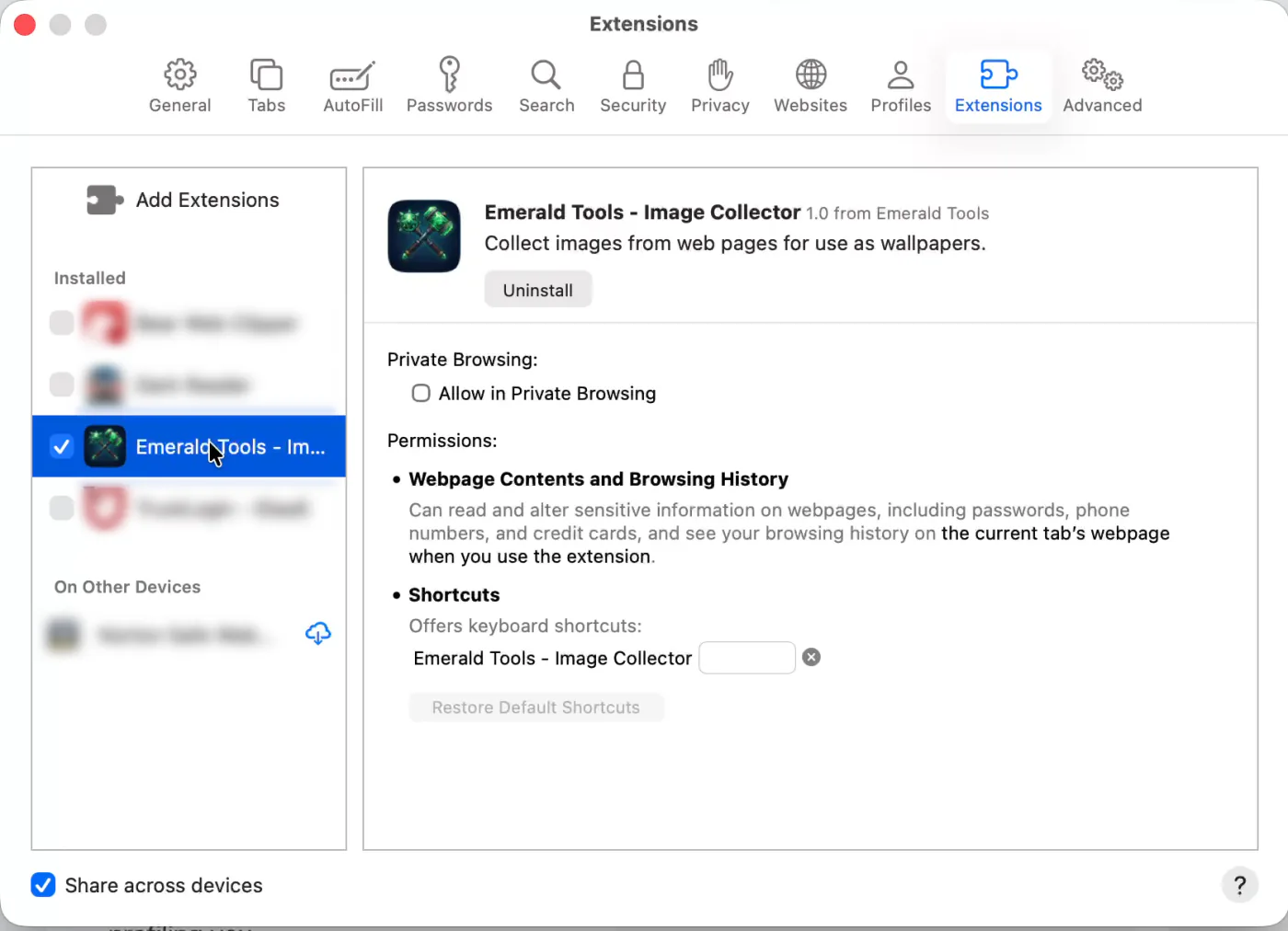
- Switch the extension on in SafariInstall Emerald Tools from the Mac App Store and open it once. Then open Safari's settings, go to Extensions, and tick the entry in the list on the left. It is called Emerald Tools - Image Collector rather than Emerald Tools alone, because Safari lists extensions by what they do. Safari's own description of its permissions is worth reading here: it can act on the current tab's webpage, and only when you use the extension.
- Open the page and scan itGo to the page whose images you want and click the Emerald Tools icon in Safari's toolbar. The popup opens empty, with one instruction: click Scan. The page will scroll itself from top to bottom while the scan runs — that is deliberate, because images that load on demand exist only once they have been scrolled into view — and it returns to where you were when it finishes.
- Filter the list and pick what you wantEvery image found is listed as a thumbnail, selected, with its pixel size printed across the bottom when the size is known. Type a number into Min W or Min H to drop anything smaller; 0 in a box means that dimension is not filtered at all. Select All and Deselect All clear or fill the whole visible list, and clicking a thumbnail toggles that one. The counts above the grid read how many are selected, how many the filter is showing, and how many were scanned in total.
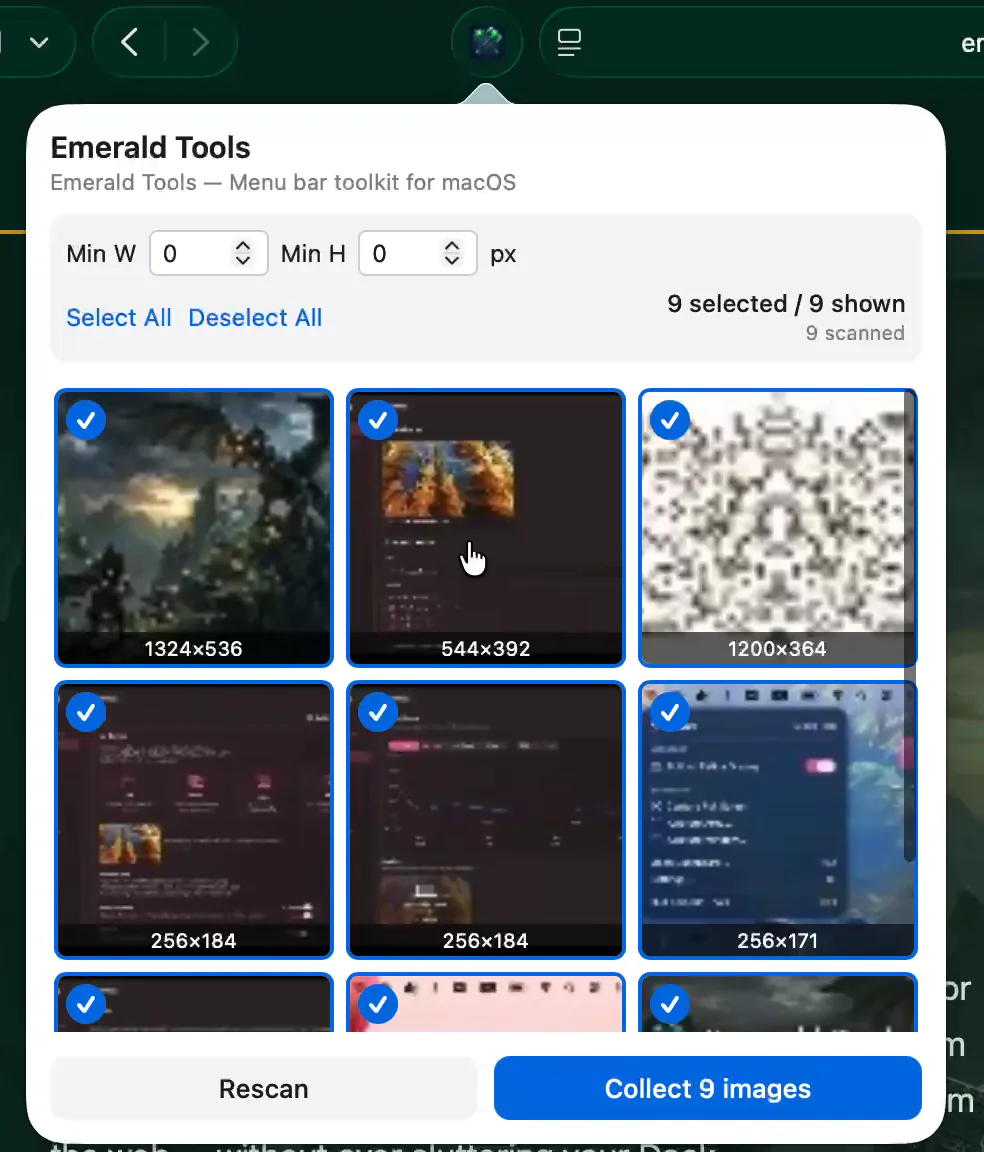
- Send the selection to the appThe blue button at the bottom counts what you have ticked — Collect 9 images, for nine of them. Pressing it passes the list of image addresses, the page's address and the page's title to Emerald Tools on your Mac; the images themselves are not sent through the extension. The button confirms what it sent and the popup closes itself a moment later.
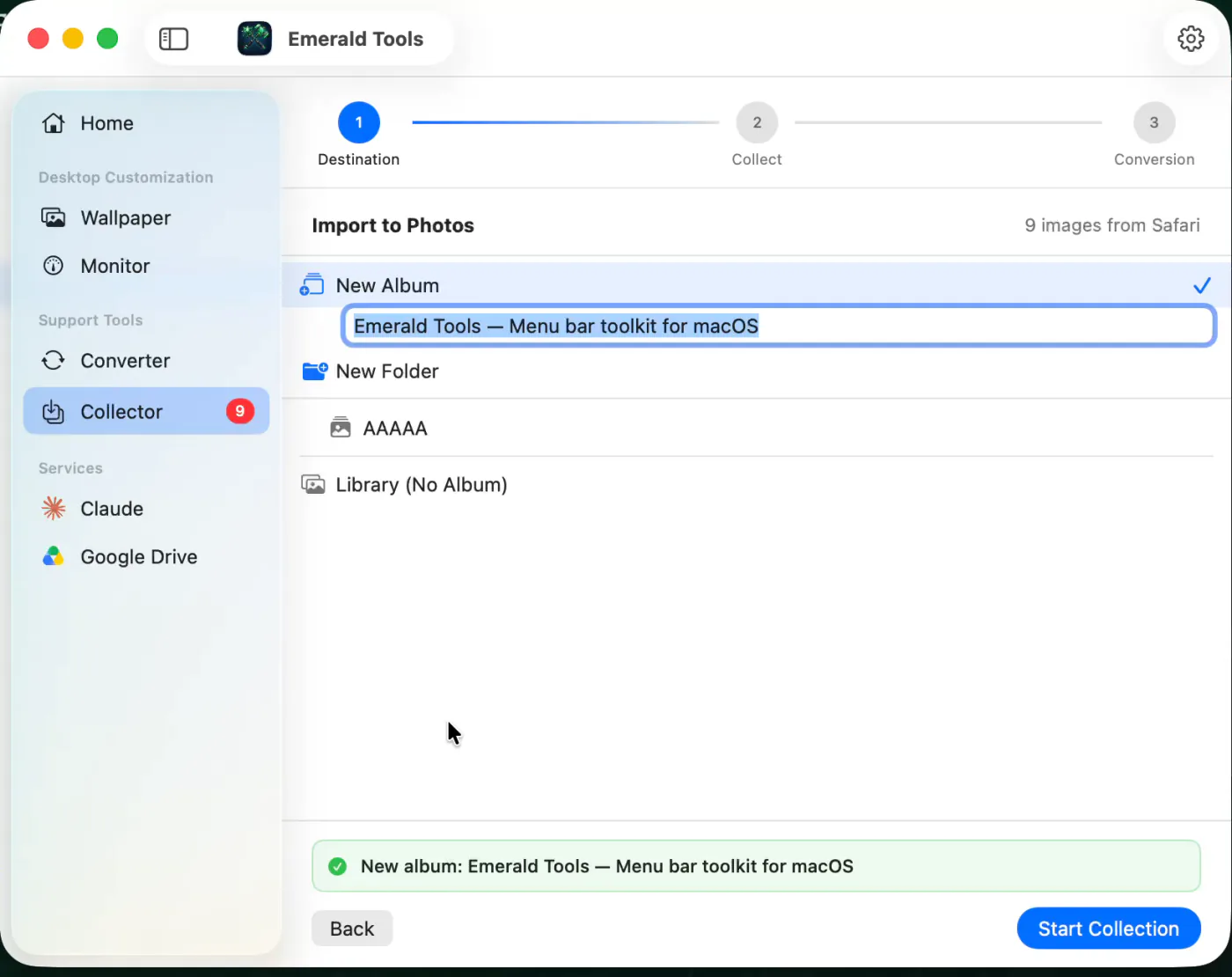
- Choose where they land in PhotosEmerald Tools comes forward on its Collector page with the wizard already open at Destination, and the count beside the heading tells you how many arrived from Safari. You can create a new album, create a folder and an album inside it, add to an album you already have, or import into the library with no album at all. The new-album field is pre-filled with the title of the page you collected from, which is usually the name you wanted. Start Collection begins the download.
- Let it run, and review anything it convertedThe Collect step downloads three files at a time by default, with a log you can watch. If any of the files turned out to be an animated WebP, a Conversion step follows and then a review screen: thumbnails of everything collected, with the converted clips marked, so you can untick what you do not want before importing. If nothing needed converting, the import runs straight through and the wizard ends on Import Complete with the number of files that reached Photos.
What the extension reads, and what it does not
The scan is the part worth being precise about, because a browser extension that reads pages is exactly the kind of thing you should be suspicious of.
- It runs on one tab, when you ask it to. The extension asks Safari for access to the active tab, the ability to run its scan in that tab, and a channel to the app on your Mac. Nothing happens until you open the popup and press Scan. Safari states the same thing in its own words in the Extensions pane: the current tab’s webpage, when you use the extension.
- It collects addresses, not images. What crosses from Safari to the app is a list of image URLs, the address of the page and its title. The downloading is done afterwards, by the app, directly from the site.
- It has nowhere to send anything. There is no account with Emerald Tools, no server the developer runs, and no analytics in the app or the extension. The queue between the extension and the app is a shared preference store on your own Mac.
- The thumbnails are drawn locally. Previews in the popup are made from the images the page has already loaded, shrunk to 128 pixels on the longer side inside the browser. They are not fetched from anywhere else and they are not kept.
How the scan finds images a right-click cannot
A modern page rarely holds all its images at once. Galleries mount and unmount them as you scroll, responsive layouts describe several sizes of the same picture and let the browser choose, and decorative images are often not images at all as far as the document is concerned — they are backgrounds applied in CSS.
The scan is built around that. It walks down the page one viewport at a time, up to thirty screens’ worth, and takes an inventory at every step rather than only at the end. That matters for windowed lists, where an image exists only while it is near the viewport: by the time you scroll back, it is gone again. Anything that scrolls sideways is walked the same way, up to twenty widths. When the walk is over, the scan waits for images still in flight to finish, takes one last inventory, and restores your scroll position.
Alongside the images the page has drawn, it reads the addresses the page merely mentions: the alternatives in a srcset, the lazy-load attributes that hold the real address until a script swaps it in, backgrounds declared in CSS, the og:image meant for social previews, and the fallback markup inside a noscript block. Those references usually arrive without dimensions, so the extension fetches each one once, with a two-second limit, to measure it and make a preview. Whatever cannot be measured is still offered to you — an image the scan is unsure about is a worse thing to hide than to show.
From the page to Photos, in one run
Pressing Collect hands your selection over and the popup’s job is done. On the Mac side the app opens its Collector, skips straight to the question only you can answer — where should these go — and pre-fills the new-album name with the title of the page, which is nearly always the label you would have typed.
The download that follows is deliberately unhurried. Three files at a time by default, half a second between one finishing and the next starting, up to three retries each with two, four and eight seconds between attempts, and a Referer header naming the page the images came from, because a good many sites serve images only to requests that look like they came from their own pages. A 404 is not retried; there is nothing there to wait for. The whole run is written to a log on screen as it goes, one line per file, with the size and the format it turned out to be.
Formats are settled by the file, not by the address. The first bytes of each download identify it as WebP, PNG, JPEG or GIF, and it is saved with the matching extension — so a file served from a URL ending in .jpg will land as a .webp if that is what it is, and Photos will accept it rather than choking on a mislabelled file. Anything the app cannot identify keeps the extension from its address.
Then the animated WebP are dealt with. They are converted to MP4, the originals are dropped, and if the conversion produced several clips the app checks whether any of them are consecutive pieces of the same animation — comparing the last frame of one against the first frame of the next — and joins those that match, keeping the pieces so the join can be redone. That is the only case where a review screen appears before the import: thumbnails of everything collected, converted clips marked as such, a right-click to preview in QuickTime Player, and an import button that takes only what is still ticked. When nothing needed converting there is nothing to review, and the import runs through on its own. Conversion is a tool in its own right in Emerald Tools, with settings of its own, and there is a separate guide to converting animated WebP to MP4.
When a site pushes back
Collecting a page’s images is more requests in a minute than a person browsing makes, and some sites treat that as something to stop. The app watches for three signs: a 403, a 503, and — the one that catches people out — a normal 200 response whose content type is HTML, which is what a bot check returns when it has decided to show you a challenge page instead of the picture you asked for.
Three of those in a row and the run pauses rather than grinding through the rest of the list and failing every one. You get a notification, the Dock icon asks for attention, and the app offers to open the site in a sheet so you can sign in or clear the challenge. Press Done and it resumes with the session you just established; the files that were turned away go back into the queue rather than being written off. Everything already downloaded stays where it is.
If you are collecting from a site that rate-limits aggressively, the concurrency setting is the lever — the app itself warns that going above five connections may provoke a limit — and lowering it costs you nothing but time.
Specifications and limits
Everything below is the behaviour of the current release, not a plan.
- Extension name in Safari: Emerald Tools - Image Collector, listed under Extensions in Safari’s settings.
- Extension permissions: the active tab, the ability to run the scan in it, and a channel to the app. No standing access to other tabs, and no host permissions.
- What the scan reads: img elements and their lazy-load attributes, srcset candidates on img and picture, CSS background images, og:image, and img elements inside noscript.
- What it skips: anything that is not an http or https address, inline data URIs included. Duplicate addresses are merged into one entry.
- Scan depth: up to thirty viewport heights down the page, and up to twenty widths across any horizontally scrolling container.
- Thumbnails: generated in the browser at 128 pixels on the longer side. Images the page did not size are re-fetched once, with a two-second limit, to measure them.
- Size filter: Min W and Min H in pixels; 0 disables that dimension. Images of unknown size are kept.
- What crosses to the app: the selected image addresses, the page address and the page title. Not the images.
- Queue: held on your Mac between the extension and the app, so collecting while the app is closed works; it is picked up at the next launch.
- Wizard: Destination, Collect and Conversion. The Conversion step disappears when automatic conversion is switched off.
- Destinations: a new album, a new folder with an album inside it, a new album inside an existing folder, an existing album, or the library with no album.
- Download: three files at a time by default, adjustable from one to ten; half a second between one finishing and the next starting; a Referer header naming the source page; a 60-second timeout per file.
- Retries: three by default, adjustable from zero to ten, waiting two, four and eight seconds. A 404 is not retried.
- Pause conditions: three consecutive 403, 503 or HTML-instead-of-image responses. Resuming re-queues what was refused.
- Format handling: WebP, PNG, JPEG and GIF identified from the file’s first bytes; the saved extension follows the file, not the address.
- Conversion: animated WebP to MP4, on by default. Still images are untouched. Consecutive clips are joined automatically, with the pieces kept.
- Import: into Photos in batches of fifty, retried one by one if a batch fails, with a PNG fallback for a still image Photos will not take.
- History: the page title, address, count and destination of each run, kept for the most recent fifty runs and fourteen days, clearable at any time.
- Permissions: access to your Photos library, requested when the import starts. No screen recording and no accessibility access are needed for this tool.
- Transmission: to the site you collected from, and nowhere else. No account, no analytics, no server.
- System requirement: macOS 14.0 (Sonoma) or later.
Frequently asked questions
Which images does the scan actually find?
Ordinary img elements, including the lazy-loading attributes sites use to defer them; the candidates listed in a srcset, whether on an img or inside a picture element; images set as a CSS background; the og:image a page declares for social previews; and img elements hidden inside a noscript block. Only http and https addresses are kept — inline data URIs are skipped — and the same address found twice is listed once.
Why does the page scroll on its own while it scans?
Because a great many images do not exist in the page until they have been scrolled into view. The scan walks down the page one screen at a time, up to thirty screens, harvesting what has appeared at each step, and does the same sideways through any horizontally scrolling strip it finds. It then waits for images still loading to settle before it reports, and puts your scroll position back where it was.
What do Min W and Min H do, and what should I put in them?
They are pixel thresholds: an image narrower than Min W, or shorter than Min H, is left out of the list. A 0 in a box turns that threshold off, and the boxes start at whatever Filter Defaults is set to in the app's Collector settings. Images whose true size could not be determined are kept rather than dropped, so a threshold never silently loses something the scan was unsure about.
Why do some thumbnails have no size printed on them?
Because the page did not tell the extension how big that image is — a common outcome for images referenced in a srcset or a CSS background rather than drawn on screen. The extension tries to fetch such an image again to measure it and make a thumbnail, giving each one two seconds; when that does not work, the entry stays in the list without a size and without a preview.
Can the extension read pages I have not opened it on?
No. It asks Safari for three capabilities only — to act on the active tab, to run its scan there, and to talk to the app on your Mac — and it does that when you open its popup and press Scan. It has no standing access to your other tabs, no background process watching your browsing, and nothing to send anywhere: the result of a scan goes to the app on the same Mac.
Does Emerald Tools have to be running when I collect?
No. The list is left in a queue that both the extension and the app can see, so if the app is closed it picks the queue up the next time you launch it and opens the Collector for you. When the app is running it comes forward as soon as a batch arrives, and the Collector entry in the sidebar carries a badge with the number of images still waiting to be imported.
Where do the collected images end up?
In Photos, in whichever destination you chose before starting: a new album, a new folder with an album inside it, an album you already have, or the library with no album. Emerald Tools asks for permission to your Photos library at the moment the import begins, not before. The downloaded files are held in a temporary folder in the meantime and cleared out afterwards.
What happens to animated WebP?
It is converted to MP4 before the import, which is on by default and can be switched off in the app's Collector settings. Still images are not touched. When two or more clips are produced, the app compares their first and last frames and joins the ones that look like a continuous sequence, keeping the originals so you can undo it — the review screen lets you re-select the right clips and merge them again. The converter is a tool in its own right and has its own guide.
The collection stopped part-way. What happened?
Three refusals in a row from the site — a 403, a 503, or a page of HTML where an image should have been, which is what a bot check usually returns — pause the run rather than letting it burn through the rest of the list. You get a notification, and the app offers to open the site in a sheet so you can sign in or clear the check; when you press Done it resumes with the new session, and the files that were refused go back into the queue rather than being lost.
Are files saved with the right format?
Yes, and not on the strength of the address. Every file is identified from its first bytes as WebP, PNG, JPEG or GIF and saved with the extension that matches what it really is, which is why an image served from a URL ending in .jpg can arrive as a .webp. Only when the bytes are unrecognised does the app fall back to the extension in the address.
Am I allowed to use the images I collect?
That is between you and the site. The extension only automates what your browser has already loaded; it does not change who owns the image or what you may do with it. Check the terms of the site you are collecting from, and treat anything you did not make yourself as somebody else's work.
What do I need to run Emerald Tools?
A Mac running macOS 14.0 (Sonoma) or later, Safari for the extension, and permission to your Photos library for the import. Emerald Tools is a subscription app with a 14-day free trial, and the App Store listing shows the current terms for your region. No account with us, and nothing to sign in to for this particular tool.
Get Emerald Tools for macOS
The Image Collector is one part of Emerald Tools, alongside multi-display live wallpapers, system monitor widgets, screenshots that upload to Google Drive, a claude.ai usage widget, and a WebP to MP4 converter. It lives in the menu bar and stays out of your Dock.