Apple Reminders MCP server for Mac AI agents
Last updated: 2026-11-14
An AI agent cannot reach the Reminders app on your Mac by itself: it needs an MCP server that speaks to Reminders on its behalf. Emerald Tools is a menu bar app for macOS 14.0 or later that includes one. With its Reminders service on, a connected agent can list, read, create, update and complete your reminders, and you decide per tool whether each call runs silently, waits for your approval in a confirmation panel, or is refused. Agents are never given a way to delete a reminder.
An agent on its own
- Reminders keeps its data in the system's store, which a chat or coding agent has no direct way into.
- Asking the agent to "add this to my reminders" ends with text you copy across yourself.
- Anything that does bridge the gap has to be trusted with everything it can reach, all at once.
The Reminders service in Emerald Tools
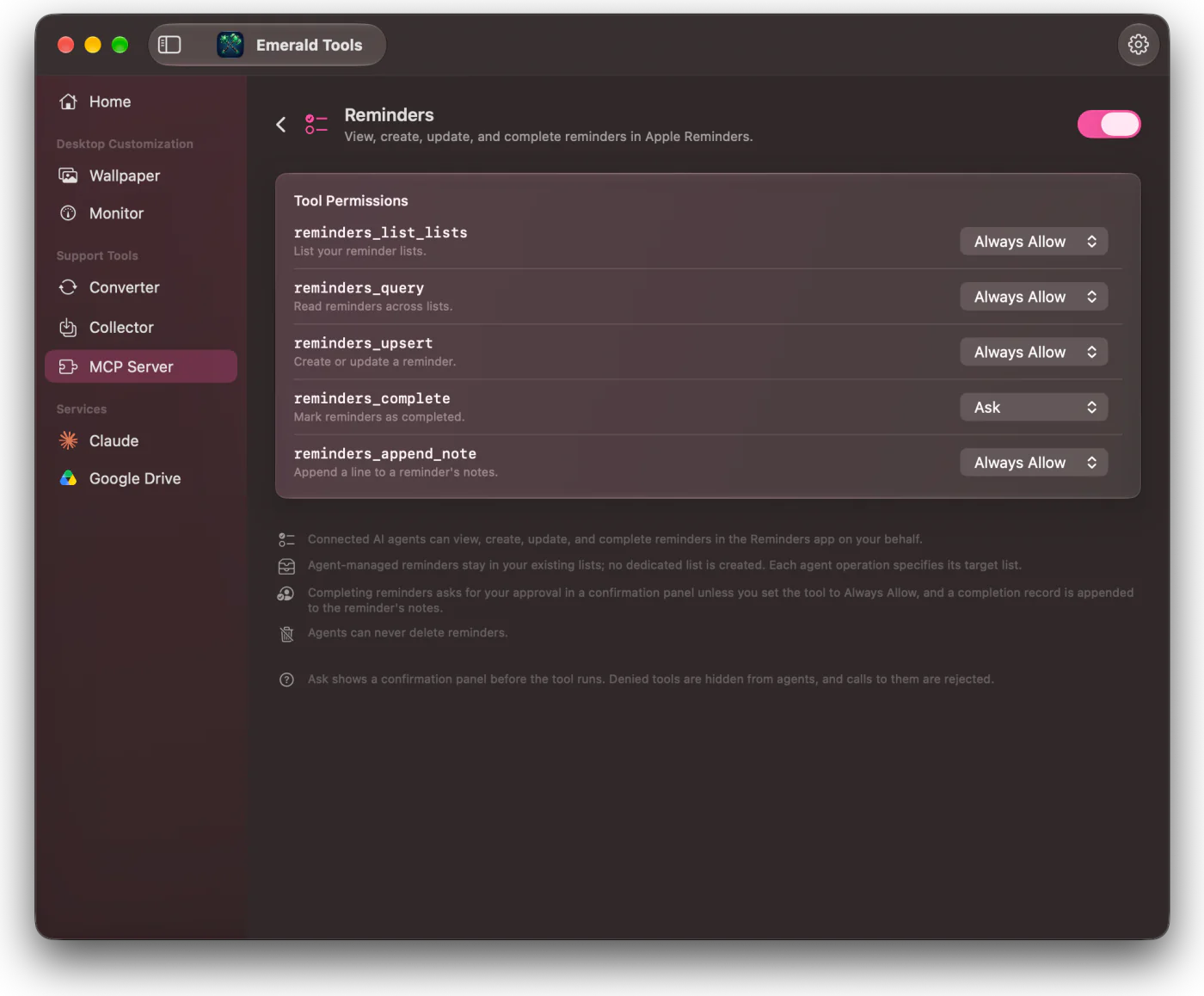
- Gives a connected agent five tools for Reminders: list your lists, read, create or update, complete, and append a note.
- Lets you set each tool to Always Allow, Ask or Deny. Reading defaults to Always Allow; anything that changes a reminder defaults to Ask.
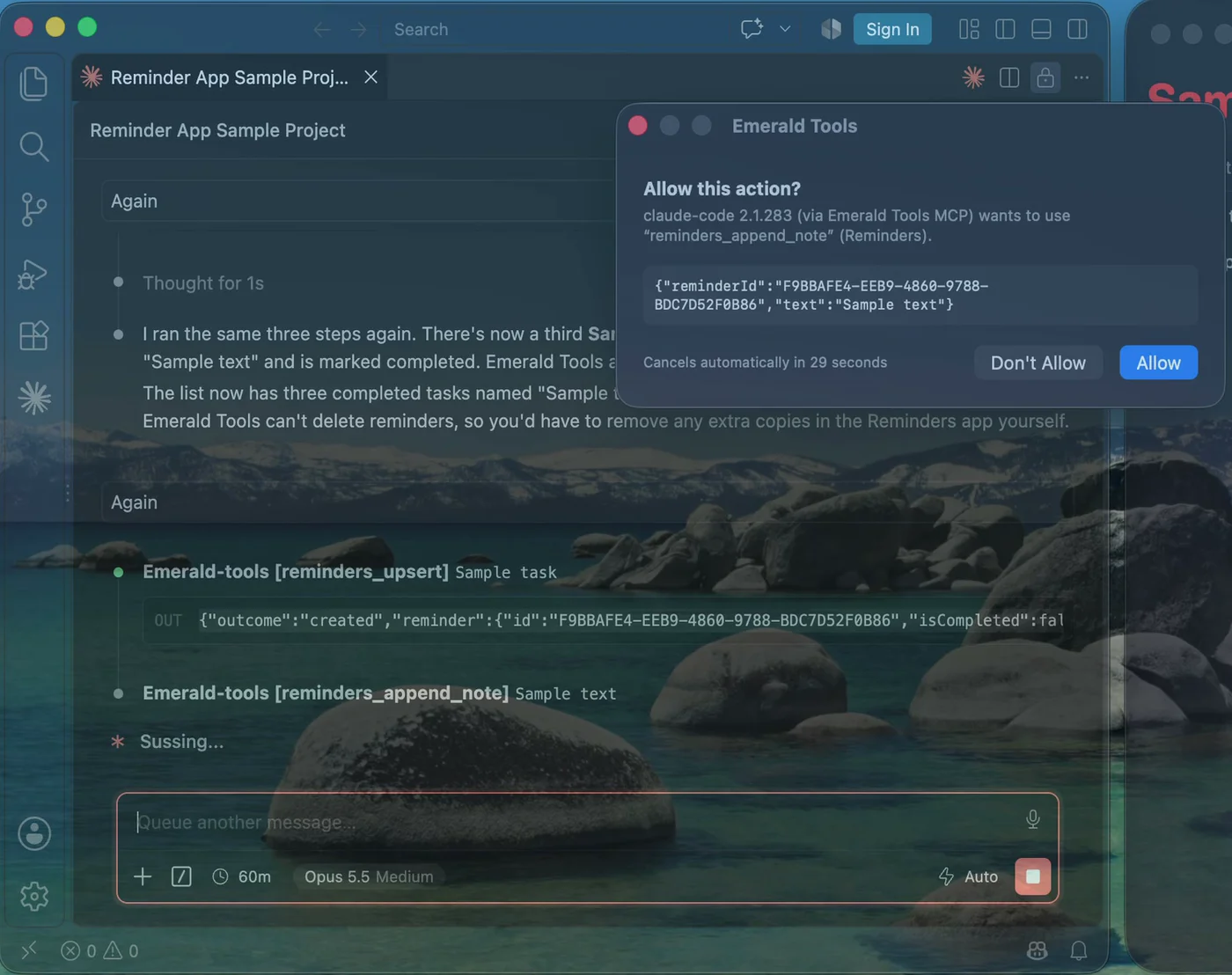
- Shows a confirmation panel on Ask, with the agent's name and the exact arguments, and cancels on its own after 30 seconds.
- Offers no delete tool at all, and never recreates a reminder you deleted yourself.
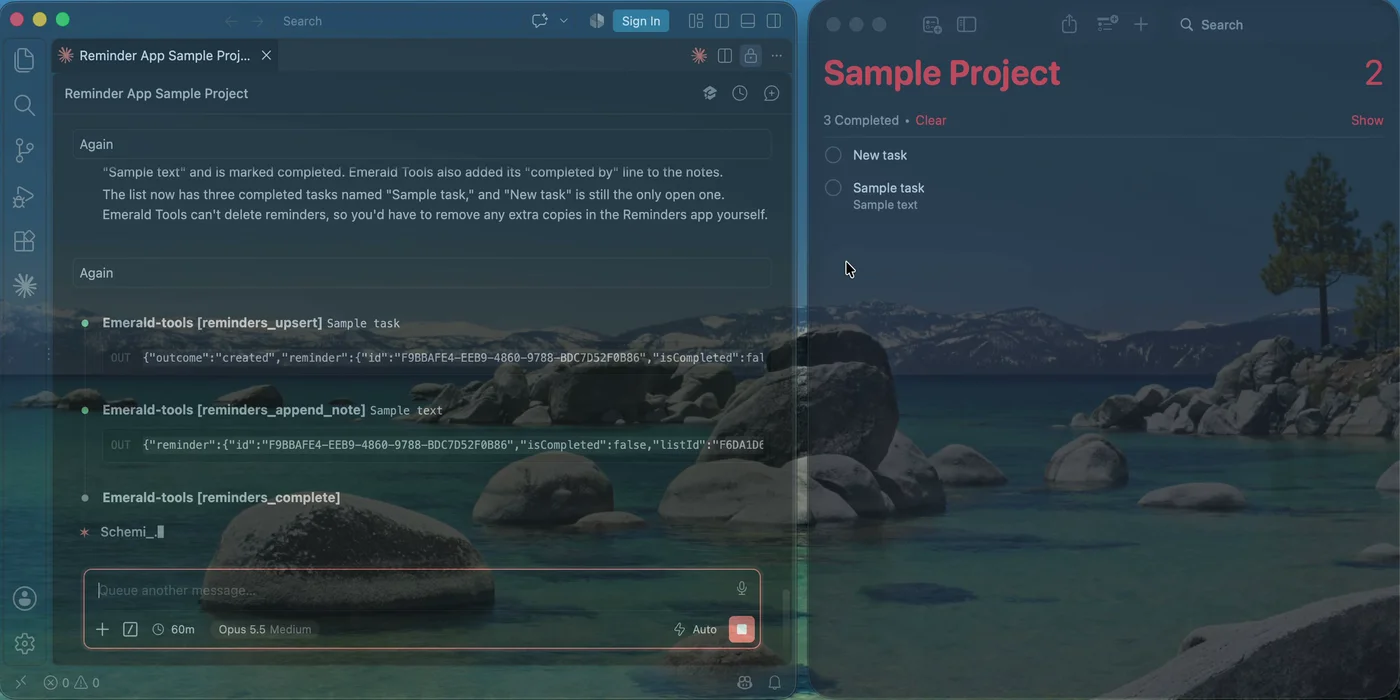
- Records which client completed a reminder, in a line added to its notes.
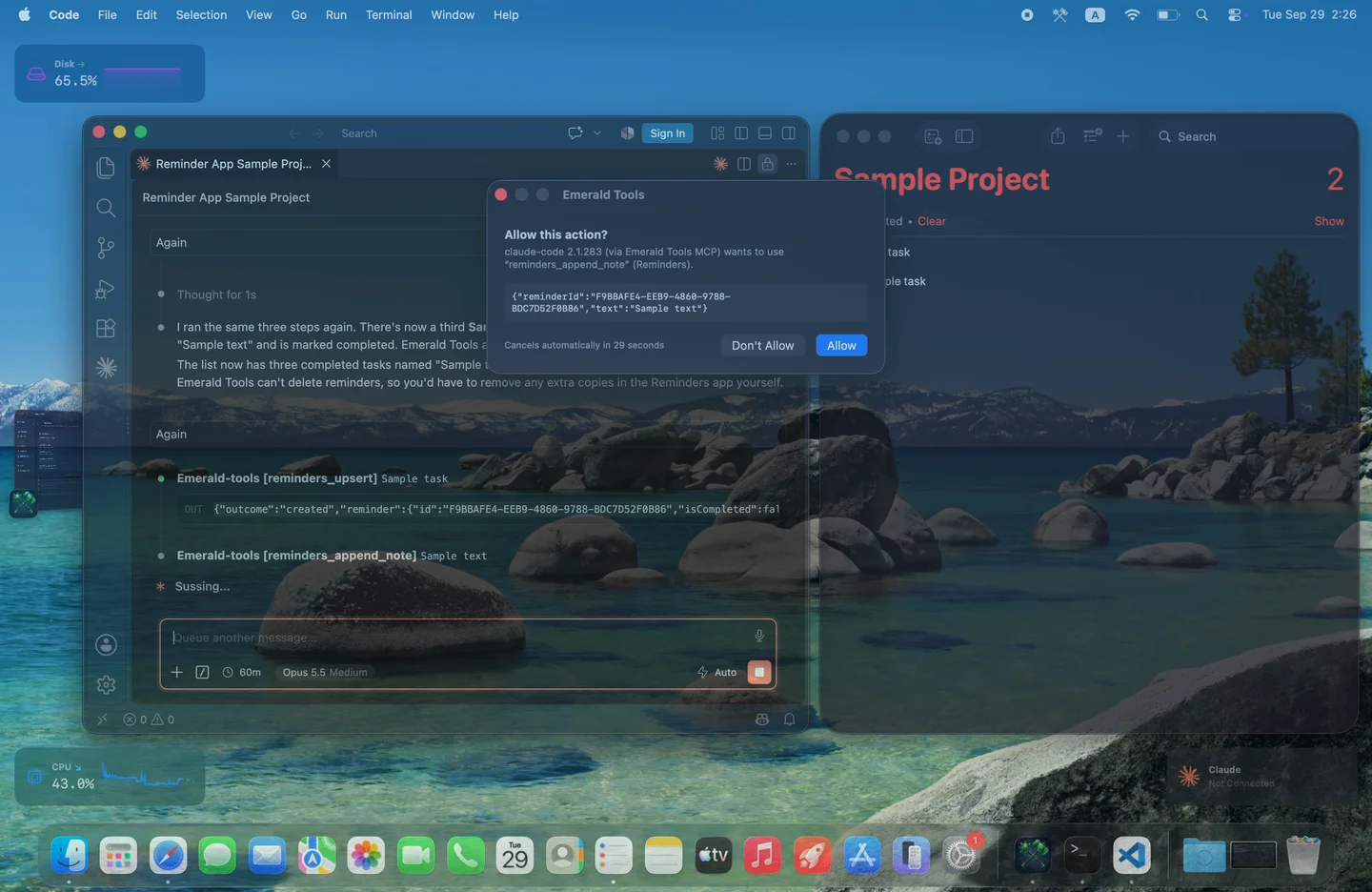
How to connect an AI agent to Apple Reminders
- Choose what each Reminders tool may doSet up the MCP server and register it with your MCP client first, as described in the MCP server guide, and make sure Reminders is switched on under Tool Groups. Click the chevron next to Reminders to open its page, which lists its five tools. Every tool has a menu with three settings: Always Allow runs the call straight away, Ask shows a confirmation panel first, and Deny hides the tool from agents altogether.
- Ask the agentAsk in plain words — add a reminder to a list, note something on one, tick one off. The first time an agent reaches for Reminders, macOS asks whether Emerald Tools may access your reminders; that permission is macOS's own, and you can withdraw it later in System Settings. From then on, a tool set to Ask brings up an Allow this action? panel naming the agent, the tool and the arguments it sent. Allow runs it; Don't Allow, or letting the countdown run out, sends the agent a refusal instead.
- Check the result in RemindersChanges land in the Reminders app straight away, in the list the agent named — there is no separate list for agents. A reminder an agent completes also gets one line added to its notes, recording which client completed it and when, so a tick you did not make yourself can always be traced.
What an agent can do, and what it cannot
Turning on the MCP server, registering the connector, how permissions work and how the connection stays on your Mac are covered in the MCP server guide. This page is about the Reminders service.
The tools are few on purpose, and each one does a single thing.
| Tool | What it does | Default |
|---|---|---|
reminders_list_lists |
Lists your reminder lists, with their names | Always Allow |
reminders_query |
Reads reminders across lists; open ones by default, optionally completed ones and those due before a given time | Always Allow |
reminders_upsert |
Creates a reminder in a list you name, or updates the one it created earlier | Ask |
reminders_complete |
Marks one or more reminders completed | Ask (its own panel) |
reminders_append_note |
Adds a line to a reminder’s notes, never replacing what is there | Ask |
What is left out matters as much:
- No deleting. Not for reminders, not for lists, and not as a setting you can turn on.
- No overwriting notes. Notes only grow, one line at a time.
- No resurrecting. An agent tracks each reminder it creates by a name of its own choosing, kept inside Emerald Tools rather than in your reminders. If you delete that reminder, the next attempt to update it is answered with “deleted by user” and nothing is recreated.
- No new lists. Agents write into lists you already have, and every write has to say which one.
Completing reminders
Completing is handled slightly differently from the other tools. On Ask, instead of the general Allow this action? panel, Emerald Tools shows its own panel asking Complete this reminder? — or, for several, how many — and listing every reminder the agent wants to complete. Items you decline, or that time out, come back to the agent as cancelled.
A completed reminder gets a line appended to its notes in this form:
[Emerald Tools] Completed-By: <client> <version> (via Emerald Tools MCP) at <time>
The client’s name and version are what the client reported about itself. They tell you which tool was used, not who was at the keyboard.
Specifications and limits
- Tools: five — list lists, query, create or update, complete, append a note.
- Permissions: Always Allow, Ask or Deny for each tool; reading defaults to Always Allow, changing to Ask. The Reminders service can be switched off as a whole.
- Deletion: not available to agents.
- Completion record: one line appended to the notes of each reminder an agent completes.
- Due dates: a date, or a date and time, in your local time.
- Permissions from macOS: full access to Reminders, requested by macOS the first time an agent uses it.
- System requirement: macOS 14.0 (Sonoma) or later, Emerald Tools 1.2 or later.
Emerald Tools is an independent app. It is not affiliated with, endorsed by or sponsored by Anthropic or Apple. The MCP server is a way for an AI client you already use to reach your reminders under rules you set; it does not provide an AI model of its own.
Frequently asked questions
Can an agent delete my reminders?
No. There is no delete tool to call, and no setting that adds one. An agent can mark a reminder completed, and a completion is an ordinary change you can undo in the Reminders app. If you delete a reminder an agent created, the agent cannot bring it back: a later attempt to update it reports that you deleted it rather than creating a new one.
Does it ask before every action?
Only for the tools you set to Ask. Out of the box, the two tools that read — listing your reminder lists and reading reminders — are set to Always Allow, and the three that change something — creating or updating, completing, and appending a note — are set to Ask. You can change any of them. Completing has its own panel that lists every reminder the agent wants to complete, and it is skipped only when you set that tool to Always Allow.
Where do agent-created reminders go?
Into the lists you already have. Emerald Tools does not create a list for agents, and every write names its target list, so an agent has to know which list it means — it can ask for the list of lists first. Reading covers every list.
Why does macOS ask about access to my reminders?
Emerald Tools reads and writes reminders through macOS's own Reminders access, which the system grants per app. It asks once, the first time an agent uses a Reminders tool, and you can turn it off again in System Settings under Privacy & Security. Without it, the Reminders tools cannot reach your reminders.
What do I need?
A Mac running macOS 14.0 (Sonoma) or later, Emerald Tools version 1.2 or later, and an MCP client on the same Mac. Emerald Tools is a subscription app with a 14-day free trial; the App Store listing shows the current terms for your region.
Get Emerald Tools for macOS
The MCP server is one part of Emerald Tools, alongside multi-display live wallpapers, system monitor widgets, screenshots that upload to Google Drive, a web media collector, and a WebP to MP4 converter. It lives in the menu bar and stays out of your Dock.