Mac MCP server: Reminders, Mail and metrics
Last updated: 2026-11-14
Emerald Tools is a menu bar app for macOS 14.0 or later with an MCP server built in. Once you turn it on and register its connector with your MCP client, a connected AI agent can work with your reminders, search and read your mail and prepare messages for you to send, and read the system metrics history the app records. You decide which of those services an agent can reach at all, and for each tool whether a call runs silently, waits for your approval, or is refused. The client talks to the app on your Mac only, with no network port opened.
An agent on its own
- A chat or coding agent has no direct way into the apps and data on your Mac, such as Reminders or your mailboxes.
- Asking it to "add this to my reminders" or "reply to that email" ends with text you copy across yourself.
- Anything that does bridge the gap has to be trusted with everything it can reach, all at once.
The MCP server in Emerald Tools
- Gives a connected agent tools grouped by service: Reminders, Mail and System Metrics. Each service can be switched off as a whole.
- Lets you set each tool to Always Allow, Ask or Deny. Reading defaults to Always Allow; anything that changes something defaults to Ask.
- Shows a confirmation panel on Ask, with the agent's name and the exact arguments, and cancels on its own after 30 seconds.
- Leaves the last step to you where it matters: agents cannot delete a reminder, and cannot send an email.
- Keeps the client connection on your Mac: the agent's client talks to the running app through a bundled connector, with no network port opened.
How to connect an AI agent to Emerald Tools
- Turn on the MCP serverClick the Emerald Tools icon in the menu bar and choose Open Dashboard... Pick MCP Server in the sidebar, under the Support Tools heading, and switch on Emerald Tools MCP at the top of the page. The server is off until you do this; while it is off, no agent can connect.
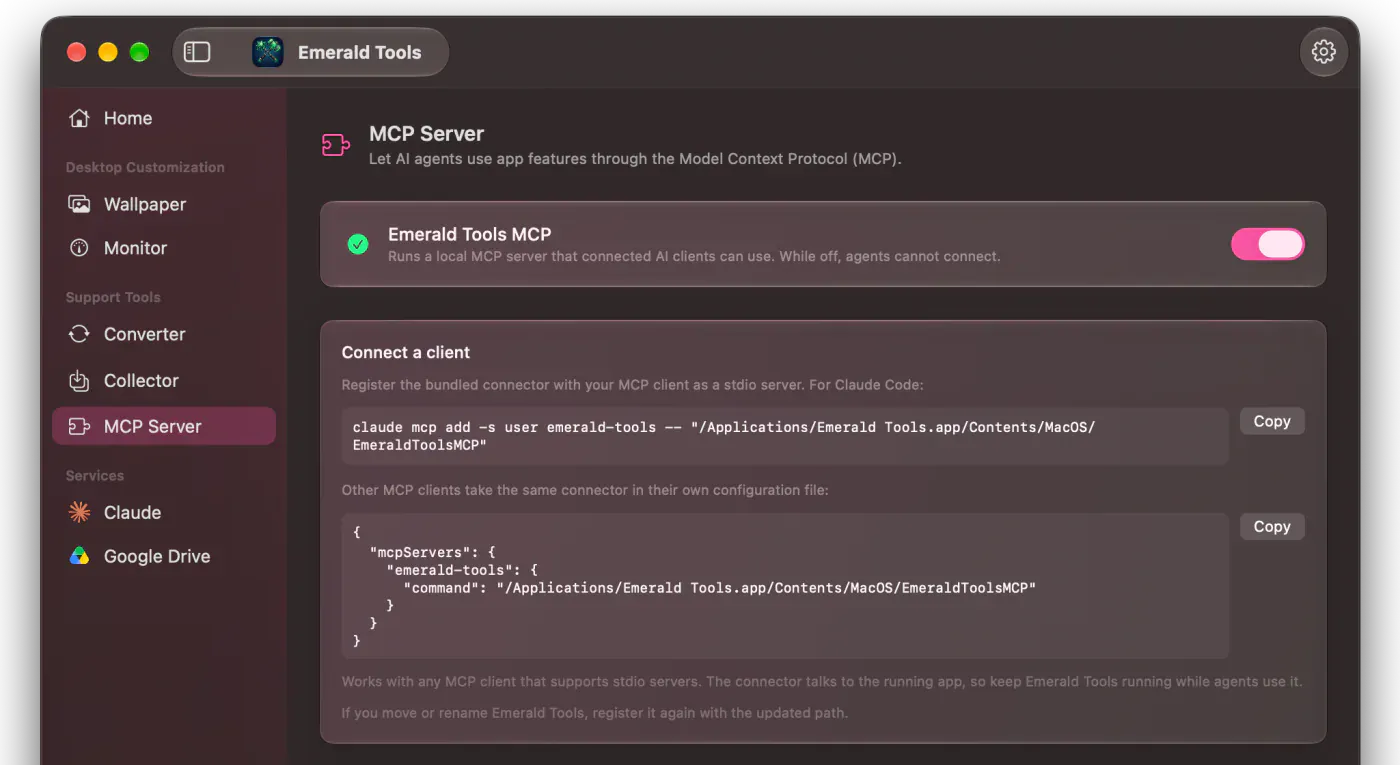
- Register the connector with your MCP clientThe Connect a client card shows the exact line for Claude Code, with the path of the connector inside your copy of the app already filled in; the Copy button puts it on the clipboard, ready to paste into Terminal. It registers the server for every folder, not only the one you run it in. Other MCP clients that support stdio servers take the same connector as a JSON entry in their own configuration file, and the second Copy button gives you that entry. Keep Emerald Tools running while an agent uses it, and register again if you move or rename the app.
- Choose the services an agent may useUnder Tool Groups, Reminders, System Metrics and Mail each have a switch that turns the whole service on or off, and a chevron that opens its page. Switch on only what you want agents to reach. Mail asks you to confirm before it turns on, because your mail may contain personal or other sensitive information, and it needs at least one mail account added on its page before an agent can use it.
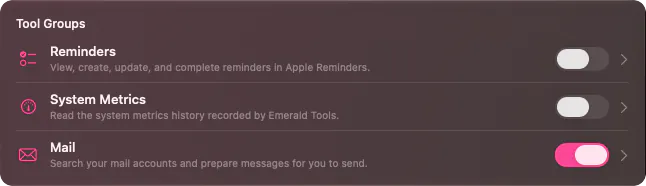
- Choose what each tool may doEach service's page lists its tools, and every tool has a menu with three settings. Always Allow runs the call without asking. Ask puts a confirmation in front of you first. Deny hides the tool from agents altogether, and a call to it is rejected with a message saying it was blocked by Emerald Tools.
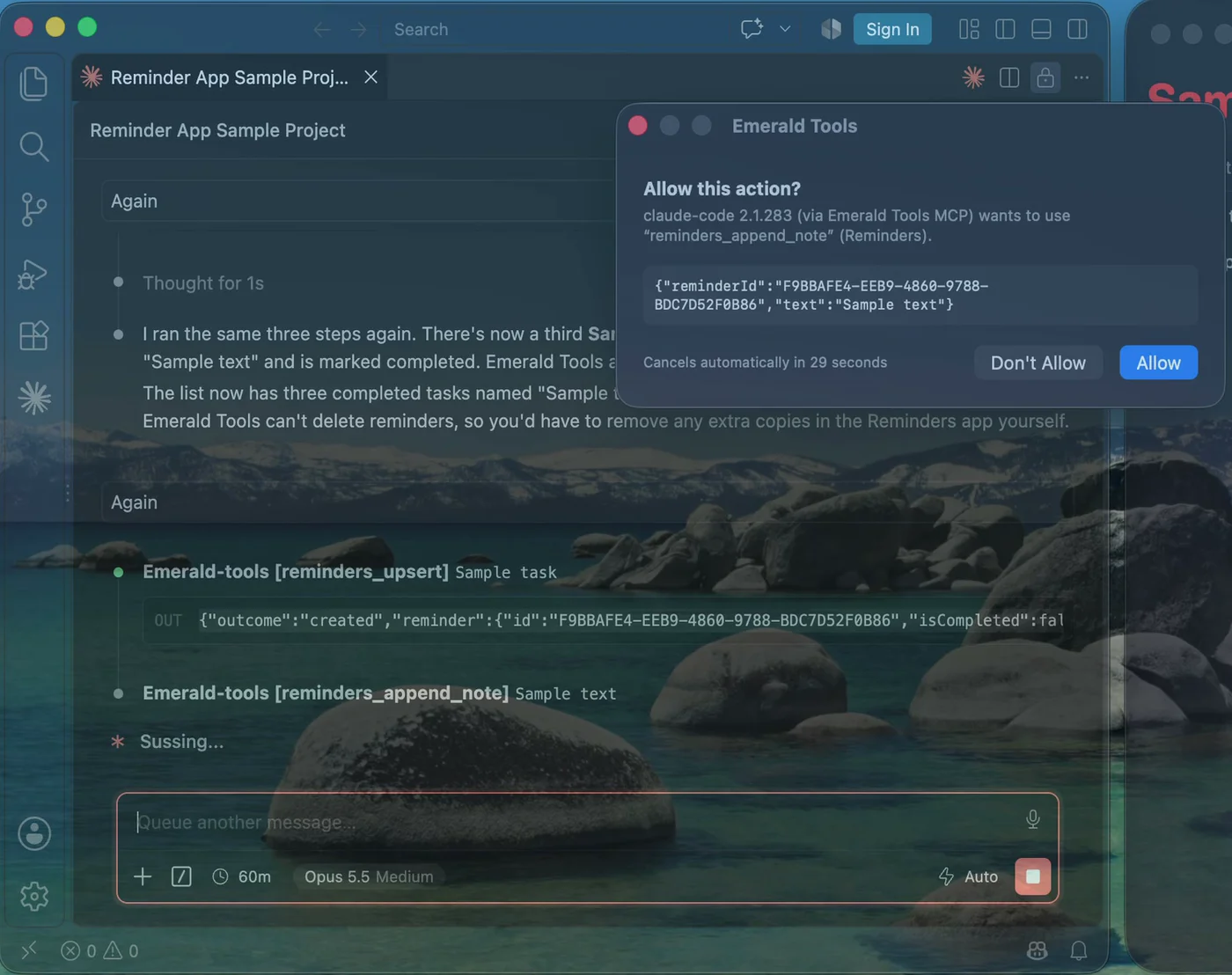
- Ask the agentAsk in plain words. When a tool set to Ask is called, an Allow this action? panel names the agent, the tool and the arguments it sent. Allow runs it; Don't Allow, or letting the countdown run out, sends the agent a refusal instead. Two tools put their own window in front of you instead of this panel: completing reminders shows every reminder the agent wants to complete, and preparing an email opens a compose window that only you can send from.
Services and their guides
Each service has its own tools and its own page under Tool Groups. The steps above are shared; what an agent can do inside each service is covered separately.
- Reminders — list, read, create, update and complete reminders, and append notes. Agents cannot delete a reminder. See letting an AI agent manage Apple Reminders.
- Mail — search and read your IMAP mail accounts, and open a new message or a reply in a compose window for you to review and send. Agents cannot send. See letting an AI agent search and draft email.
- System Metrics — read the history of system metrics the app records. One tool,
metrics_query_range, described below.
Three layers of control
Permission is decided in Emerald Tools, on your Mac, before a call reaches your data.
The server switch decides whether anything can connect at all. It is off until you turn it on.
The service switches under Tool Groups — Reminders, System Metrics, Mail — turn a whole family of tools on or off at once. A switched-off service is reported to the agent as blocked by Emerald Tools.
The per-tool setting is where the detail lives. Always Allow is for tools you are content to let run; Ask puts a confirmation in front of you each time; Deny removes the tool from the list the agent sees.
Your MCP client may add its own permission prompts on top. The two do not replace each other — a call has to get past both.
What the confirmation panel shows
The panel is headed Allow this action? and names three things: the client, as it introduced itself when it connected; the tool; and the arguments it sent, in full. A countdown underneath shows how long is left before it cancels itself. Allow runs the call. Don’t Allow, or the countdown reaching zero, sends the agent a refusal it can read and explain to you.
Two tools use their own window in place of this panel when set to Ask. Completing reminders shows a panel listing every reminder the agent wants to complete. Preparing an email opens a compose window with what the agent proposed; nothing is sent until you click Send there.
How the connection works
The connection between your AI client and Emerald Tools never leaves your Mac.
- The server lives inside the app and listens on a local socket in the app’s own container. It opens no network port.
- The connector is a small program bundled with the app. Your MCP client starts it, as it would any stdio server, and it passes messages between the client and the running app without reading them.
- The app has to be running. If it is not, the connector tells the client that it cannot reach Emerald Tools.
- Each service reaches its data in its own way. Reminders goes through macOS’s own Reminders permission, which the system asks for the first time an agent uses it. Mail connects from your Mac to the mail servers of the accounts you added, over an encrypted connection. System Metrics reads the history the app keeps on your Mac.
The System Metrics tool
| Tool | What it does | Default |
|---|---|---|
metrics_query_range |
Reads the system metrics history the app has recorded, for one metric over a time range | Always Allow |
The metrics are CPU, memory, disk, GPU, battery, network in and out, storage reads and writes, and swap. The detail follows the length of the range: individual samples up to an hour, minute averages up to a day, hour averages up to 30 days, and day averages beyond that. Periods when the app was not running come back as gaps.
Specifications and limits
- Services: Reminders, Mail and System Metrics, each switched on or off as a whole.
- Permissions: Always Allow, Ask or Deny for each tool; reading defaults to Always Allow, changing or preparing something to Ask.
- Confirmation timeout: 30 seconds by default, adjustable from 5 to 600 seconds in Settings.
- Transport: stdio between the client and the bundled connector, a local socket between the connector and the app. No network port.
- Clients: any MCP client that supports stdio servers, running on the same Mac.
- System requirement: macOS 14.0 (Sonoma) or later, Emerald Tools 1.2 or later; Mail needs Emerald Tools 1.3 or later.
Emerald Tools is an independent app. It is not affiliated with, endorsed by or sponsored by Anthropic, Apple or any mail provider. The MCP server is a way for an AI client you already use to reach your data under rules you set; it does not provide an AI model of its own.
Frequently asked questions
Which MCP clients work with it?
Any MCP client that can run a stdio server. The app shows a ready-made claude mcp add line for Claude Code and a JSON entry for everything else; where that JSON goes depends on the client, so look up the location of its configuration file in the client's own documentation. The connector does not open a network port, so a client has to run on the same Mac as Emerald Tools.
Does it ask before every action?
Only for the tools you set to Ask. Out of the box, tools that only read are set to Always Allow, and tools that change something or prepare something for you — creating, updating or completing a reminder, appending a note, opening a compose window — are set to Ask. You can change any of them on the service's page.
What happens if I do not answer the confirmation panel?
It cancels itself after 30 seconds, and the agent is told the action was not approved. The wait can be set anywhere from 5 to 600 seconds in Settings, on the MCP Server tab.
My MCP client also asks for permission. Which one wins?
Both apply. A call runs without a prompt only when your client and Emerald Tools both allow it. When Emerald Tools is the one that refuses — a tool set to Deny, or a service switched off — the agent is told explicitly that Emerald Tools blocked it, so the refusal is never mistaken for a setting in the client.
Do I have to reconnect after switching a service on or off?
No. A service you switch off disappears from the tools the agent can see, and one you switch on appears, without restarting the client. Switching off the Emerald Tools MCP switch itself closes every connected client.
Why can the agent not reach Emerald Tools?
Check three things in order. The Emerald Tools app has to be running, and the Emerald Tools MCP switch on the MCP Server page has to be on. The connector path you registered has to match where the app is now — if you moved or renamed it, copy the command again and re-register. And the client has to have picked up the registration: with Claude Code, the line the app gives you registers for every folder, whereas a plain claude mcp add without it only applies to the folder you ran it in.
Is anything sent to the developer?
No. The server is part of the app on your Mac, and it answers only the client you connected. Emerald Tools does not send your reminders, your mail or your metrics to the developer. With Mail switched on, the app connects to the mail servers of the accounts you added, as any mail app does. What your AI client does with the answers — including passing them to the model it uses — is up to that client and its provider, so their terms are the ones that apply to that part.
What can the System Metrics tool read?
The history of system metrics that Emerald Tools has recorded on your Mac: CPU, memory, disk, GPU, battery, network in and out, storage reads and writes, and swap. The agent names a metric and a time range, and the detail follows the length of the range — individual samples for an hour or less, minute averages up to a day, hour averages up to 30 days, and day averages beyond that. Periods when the app was not running come back as gaps, not as invented values.
What do I need?
A Mac running macOS 14.0 (Sonoma) or later, Emerald Tools version 1.2 or later (version 1.3 or later for Mail), and an MCP client on the same Mac. Emerald Tools is a subscription app with a 14-day free trial; the App Store listing shows the current terms for your region.
Get Emerald Tools for macOS
The MCP server is one part of Emerald Tools, alongside multi-display live wallpapers, system monitor widgets, screenshots that upload to Google Drive, a web media collector, and a WebP to MP4 converter. It lives in the menu bar and stays out of your Dock.